
Resume Matcher tailors your resume to each job description, using an AI model you choose. This page covers every feature in the order you’ll meet them: adding a master resume, tailoring it to a job, polishing it in the builder, generating the extras, and tracking your applications. To connect a model first, see Bring Your Own AI Key.
Your master resume is never overwritten. Every tailored version is saved as a separate resume, linked to the master it came from and to the job it was written for.
Dashboard
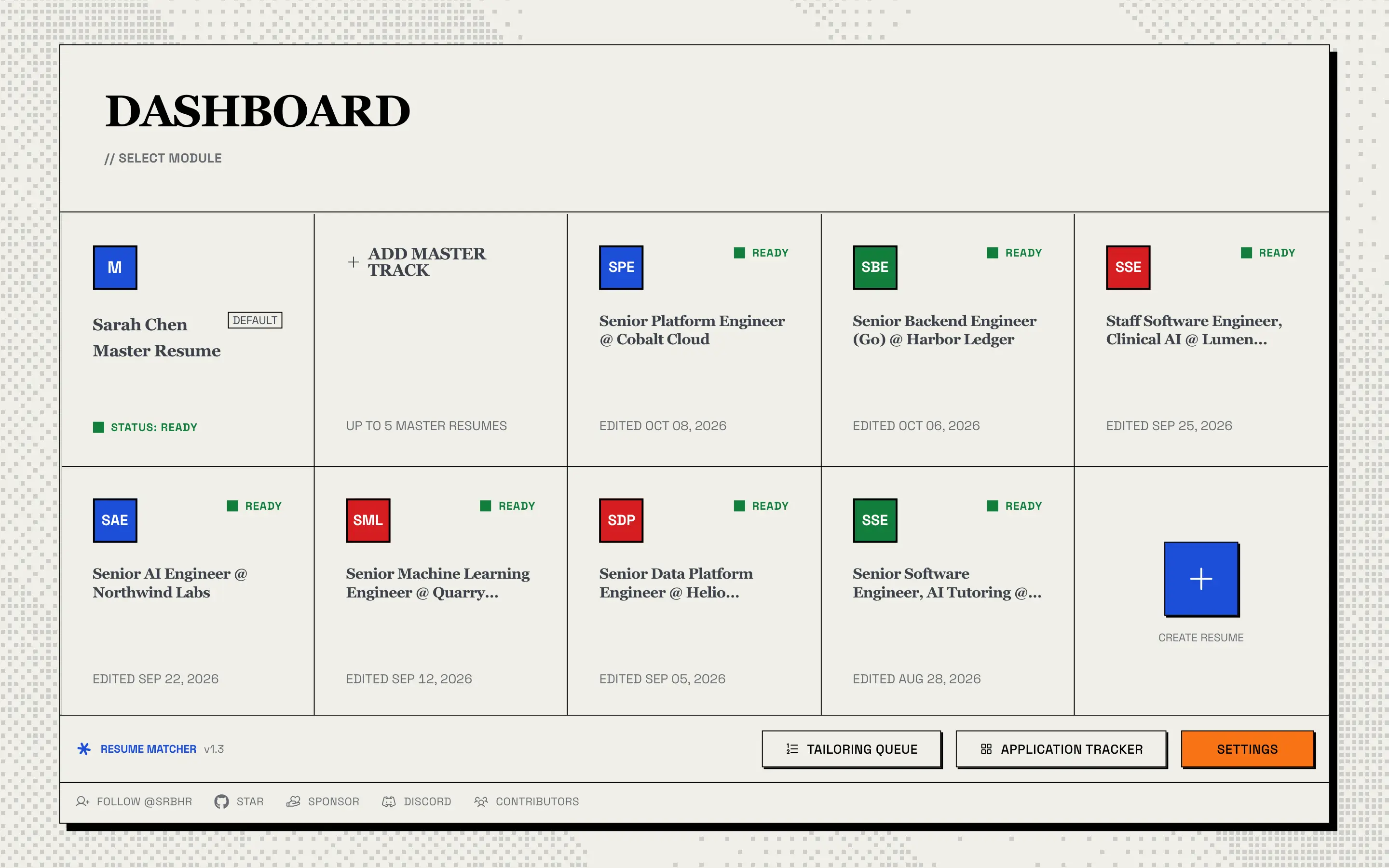
The dashboard is home base. It shows:
- Your master resume (blue tile), marked Default if it’s the one tailoring starts from, with its processing status.
- + Add master track, to add another master resume, up to five in total.
- One tile per tailored resume, titled “Role @ Company”, with its status and last-edited date.
- Create Resume, which opens the Tailor page to make a new tailored version.
- Tailoring Queue, Application Tracker and Settings in the footer, above links to follow the project on GitHub, star it, sponsor it, join the Discord and meet the contributors.
Click any tile to open that resume’s page, where you can preview it, download it, duplicate it, open it in the builder with Edit Resume, or, on a master resume, run Enhance Resume.
If no AI model is configured yet, a banner at the top links you to Settings.
Master Resumes
A master resume is your full, untailored resume: every job, project and skill in one place. Every tailored version is built from one, and tailoring never changes it.
Upload one. Drop in a PDF, DOC or DOCX file up to 4 MB. The AI reads it and turns it into structured sections (personal info, summary, experience, education, projects, skills) that you can edit in the builder. A copy of the original text is kept. Scanned, image-only PDFs have no text layer and are rejected; run them through OCR first. If processing fails, you can retry from the dashboard.
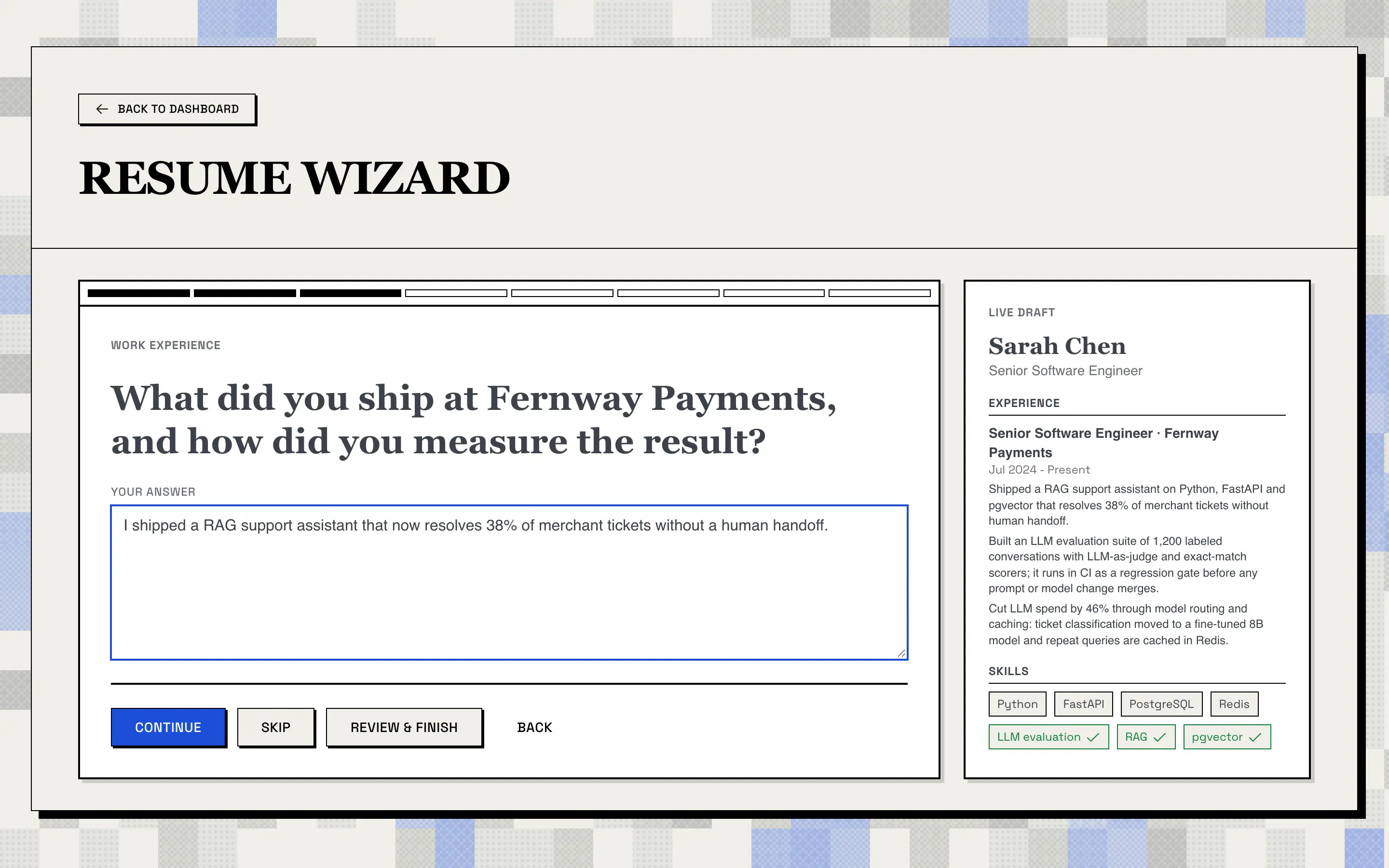
Or build one with the Resume Wizard. If you don’t have a resume file, the wizard interviews you one question at a time (at most 15) and builds your master resume as you answer. A live draft on the right shows the resume taking shape. The wizard is instructed never to invent employers, titles, dates, degrees, certifications, metrics, tools or skills; everything comes from your answers.
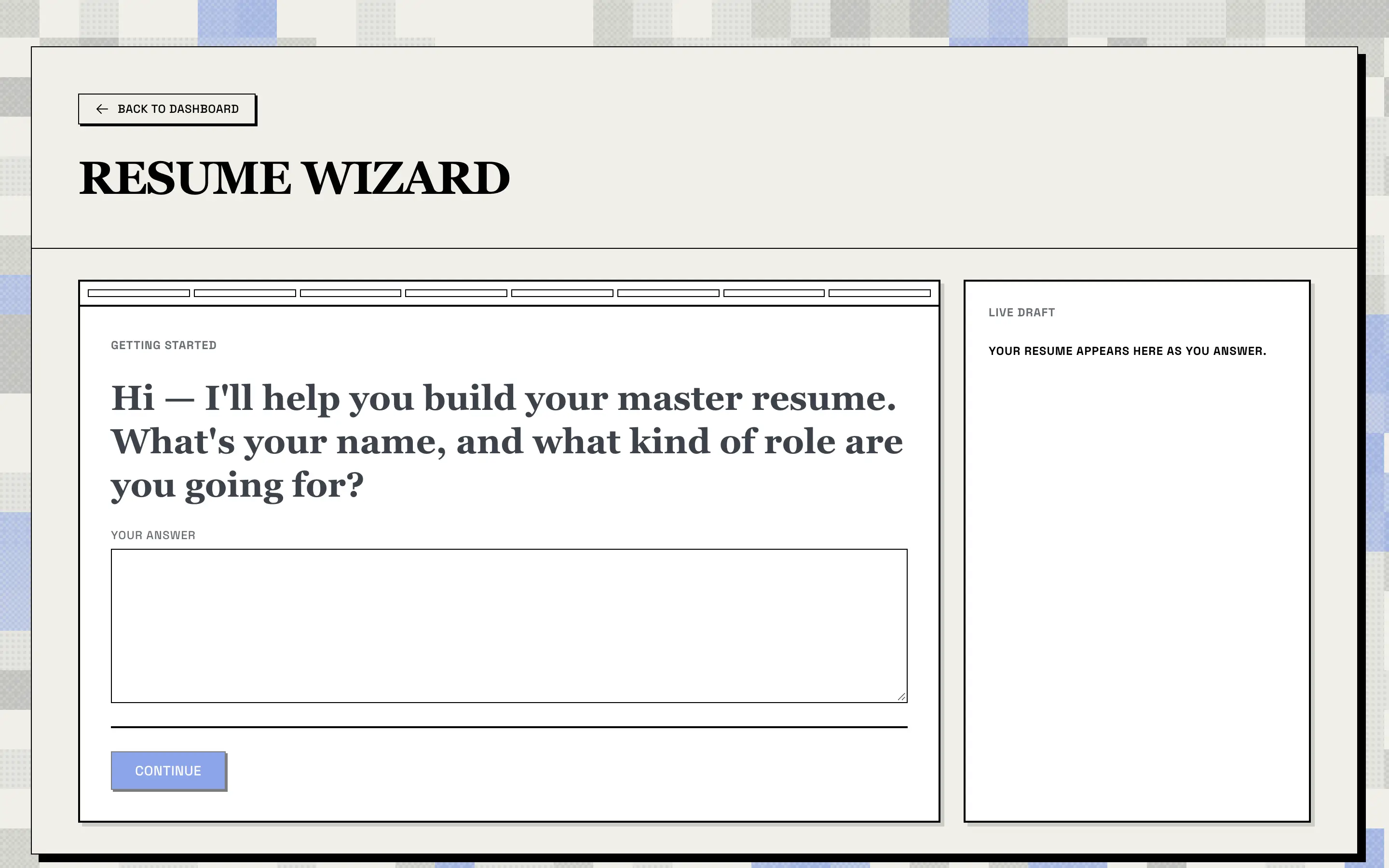
As you answer, the progress bar fills and the live draft grows: your name and title, each job with its bullet points, and your skills.
Career tracks. Keep up to five master resumes, for example one for backend roles and one for ML roles.
- Exactly one is the default. Mark a different one with Set as default at any time.
- Start a new track with Add master track, or Duplicate an existing resume.
- On the Tailor page, pick the master to draw bullets from under Select Resume. The default is preselected.
AI-Powered Resume Tailoring
Open the Tailor page from the dashboard’s Create Resume tile.
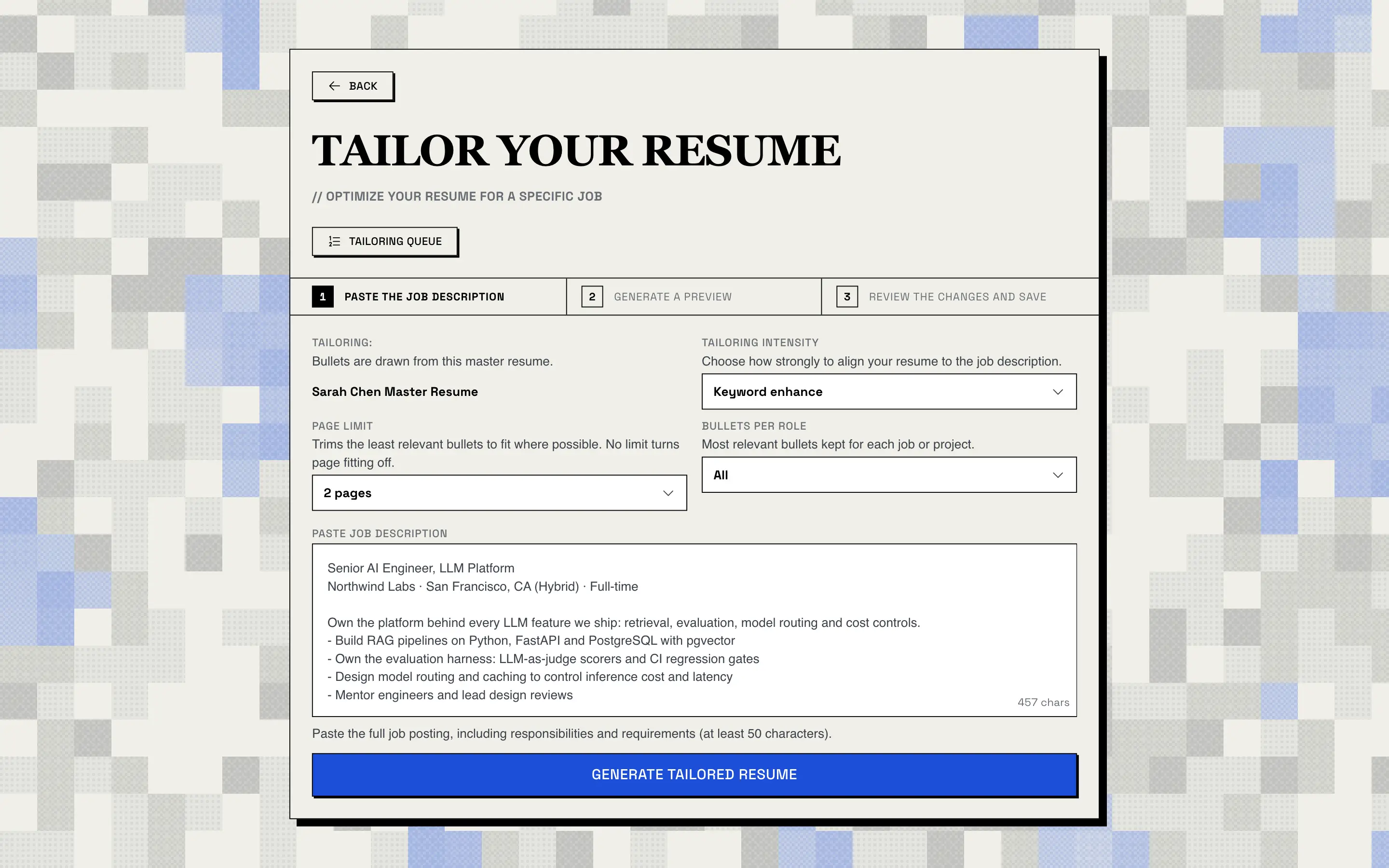
- Choose a tailoring intensity:
Light nudge: minimal edits to better align your existing experience.Keyword enhance(the default): blends in relevant keywords without changing role or scope.Full tailor: comprehensive tailoring using the job description.
- Set the length:
- Page limit: 1, 2 or 3 pages, or
No limit(default: 2 pages). Where possible, the least relevant bullets are trimmed until the resume fits.No limitturns page fitting off. - Bullets per role:
Up to 3,Up to 5orAll(the default): the most relevant bullets kept for each job or project.
- Page limit: 1, 2 or 3 pages, or
- Paste the job description (up to 100,000 characters).
- Click Generate Tailored Resume.
You can change the default intensity in Settings under Prompt settings. The page limit and bullets per role are remembered in your browser.
What Happens When You Generate
- Job analysis. The AI extracts the company, role, required and preferred skills, key responsibilities and keywords. The result is saved with the job, which is how your tracker card later gets its company and role without another AI call.
- Bullet selection. The AI scores every bullet in your jobs and projects for relevance to the job. It only scores; it can’t rewrite or invent bullets. Code then keeps the most relevant bullets up to your Bullets per role cap and, by actually rendering the page, drops the least relevant ones until the resume fits your Page limit, keeping at least one per entry. If it still doesn’t fit, every selected bullet is kept and the preview says so. With
AllandNo limit, this step is skipped. Your master resume keeps every bullet. - Skill plan. The AI proposes which skills to emphasize. Code accepts a skill only if it’s already in your resume, appears in your resume’s text, or is a required or preferred skill that appears word-for-word in the job description.
- Targeted edits. Instead of rewriting your whole resume, the AI returns a list of specific edits, each quoting the original text it replaces. Code verifies every quote against your resume and rejects edits aimed at protected fields.
- Safety nets and polish. Code restores your personal details and dates, keeps every original skill, removes a list of overused “AI-sounding” phrases (unless the job description uses them), and reverts any rewritten line that introduces a number your original doesn’t contain.
The whole run has a time limit (four minutes by default) so a slow model can’t hang the app.
Review Before Anything Is Saved
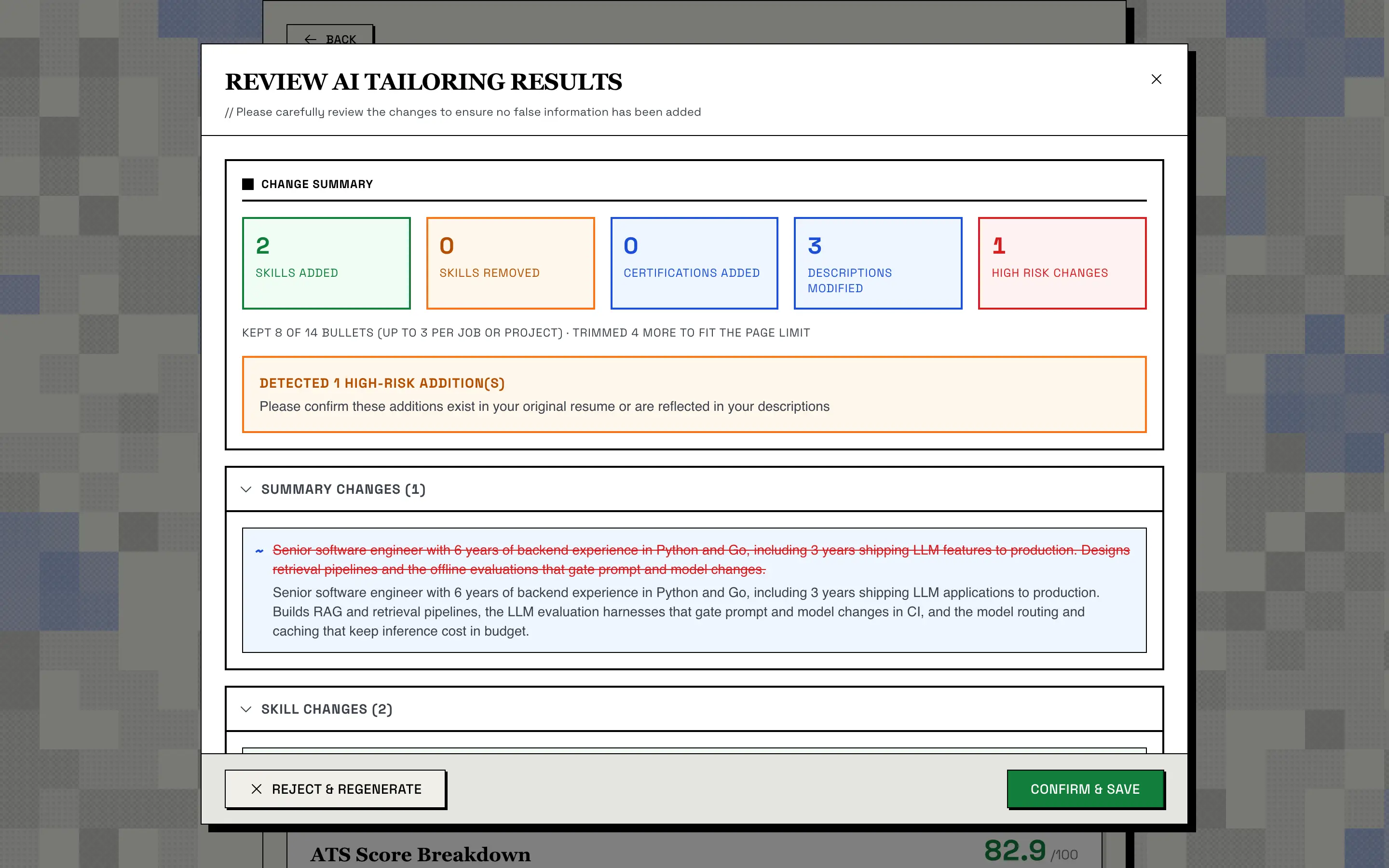
The preview shows:
- A change summary: skills added and removed, certifications added, descriptions modified, and high-risk changes.
- What bullet selection did, for example “Kept 8 of 14 bullets (up to 3 per job or project) · Trimmed 4 more to fit the page limit”.
- A high-risk warning when the AI added something, usually a skill taken from the job description, so you can confirm it’s true for you.
- Before-and-after diffs for the summary, skills and each changed bullet.
Choose Confirm & Save to keep the result, or Reject & Regenerate to discard it and try again. The decision applies to the whole preview. Read every change: guardrails stop invented numbers, employers and dates, but wording can still overstate your role, and you are the final check.
With the preview, an ATS Score Breakdown card appears under the form and stays there after you close the preview. It’s a weighted heuristic, calculated by code: 40% keyword match, 20% coverage of the job’s skills, 15% job-title match, 15% section completeness and 10% date consistency. It isn’t a simulation of any real applicant tracking system. When you confirm, it’s saved with the tailored resume; see ATS Score.
When You Confirm
- The tailored resume is saved as a new resume, titled “Role @ Company”, linked to its master and its job, with its ATS score.
- A card for it lands in the Applied column of the Application Tracker.
- If you switched them on in Settings, a cover letter, an outreach message and interview prep are generated with it.
- The tailored resume opens like any other: everything stays editable in the builder.
Tailor Several Jobs: the Tailoring Queue
Applying to several jobs at once? Queue them, and Resume Matcher tailors them one after another. Open the queue from the dashboard’s Tailoring Queue button, or from the button on the Tailor page.
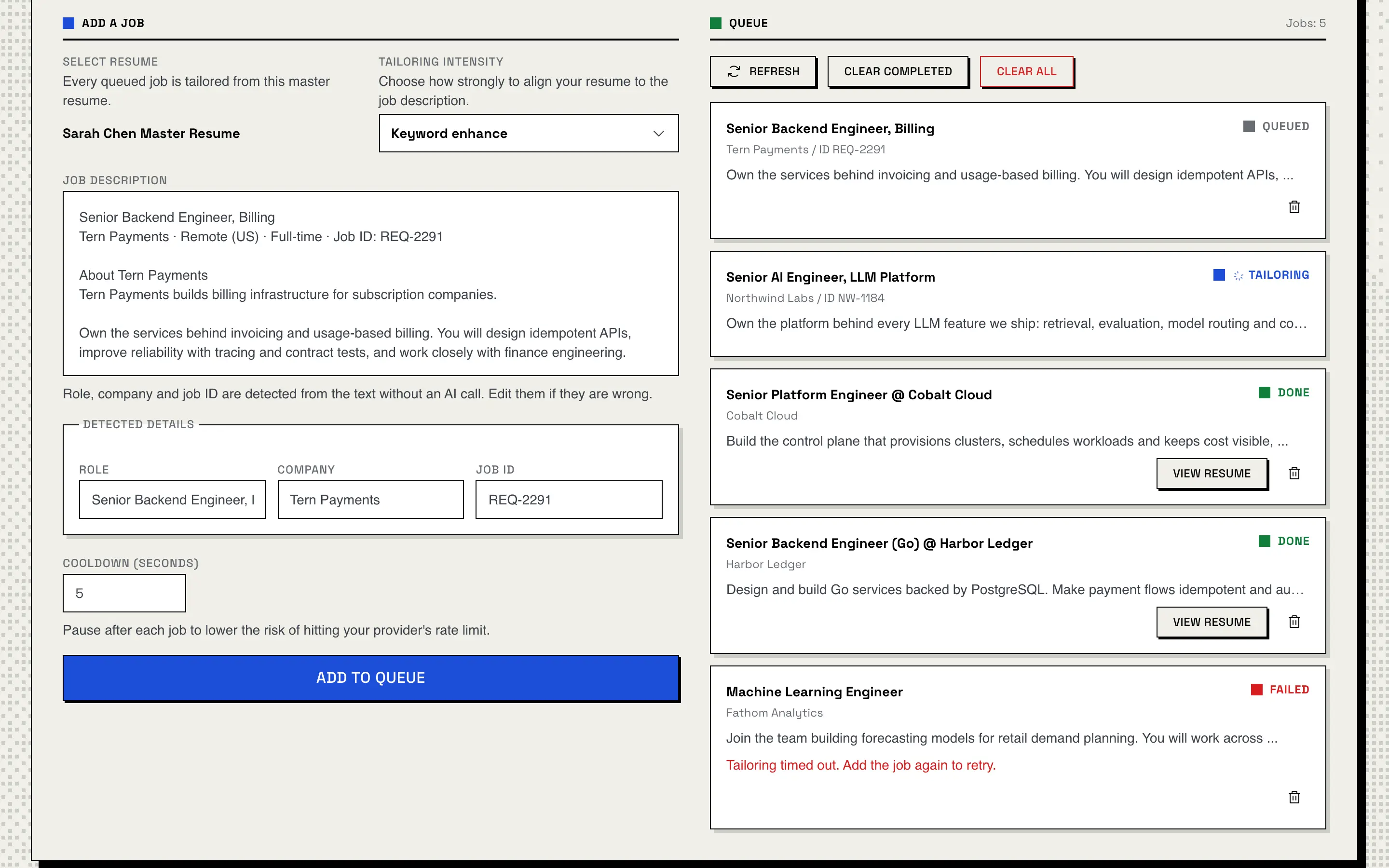
- Pick the tailoring intensity and paste a job description. The role, company and job ID are detected from the text without an AI call; edit them if they’re wrong.
- Set the cooldown, the pause after each job (5 seconds by default, up to 60), to lower the risk of hitting your provider’s rate limit.
- Click Add to Queue, and repeat for the next job.
Jobs run oldest first, each marked Queued, Tailoring, Done or Failed. A finished job has a View Resume button. A failed one, for example a job that ran past the time limit, isn’t retried; add it again. The queue is kept in the database, so it survives a page reload or a restart. Clear completed removes the finished jobs from the list and Clear all removes every job except the one being tailored; neither deletes a resume.
Queued jobs skip the review step. Each one runs the same targeted edits and safety nets as the Tailor page, then is saved straight away as a tailored resume, with its tracker card in the Applied column, its ATS score, and any cover letter, outreach message or interview prep switched on in Settings. The queue doesn’t use the page limit or bullets per role: it keeps every bullet. Open each result in the builder and read it before you send it.
What the AI Can and Can’t Change
Tailoring is designed to reword, not to invent. These rules are enforced in code, not just requested in the prompt:
| The AI can | The AI can’t |
|---|---|
| Reword your summary and bullet points using the job’s language | Change your name, email, phone, location or links |
| Reorder and emphasize skills | Change employers, job titles or dates |
| Choose which bullets to keep, within your page limit and bullets per role | Change schools, degrees or education dates |
| Add a skill the job requires, if it appears word-for-word in the job description (flagged as high risk) | Add a number, percentage or metric that isn’t in your original |
| Remove your existing skills, certifications, languages or awards | |
| Add new jobs, schools or projects | |
| Touch your custom sections |
Resume Builder
Every resume, master or tailored, opens in the builder: an editor on the left and a live, paginated preview on the right.
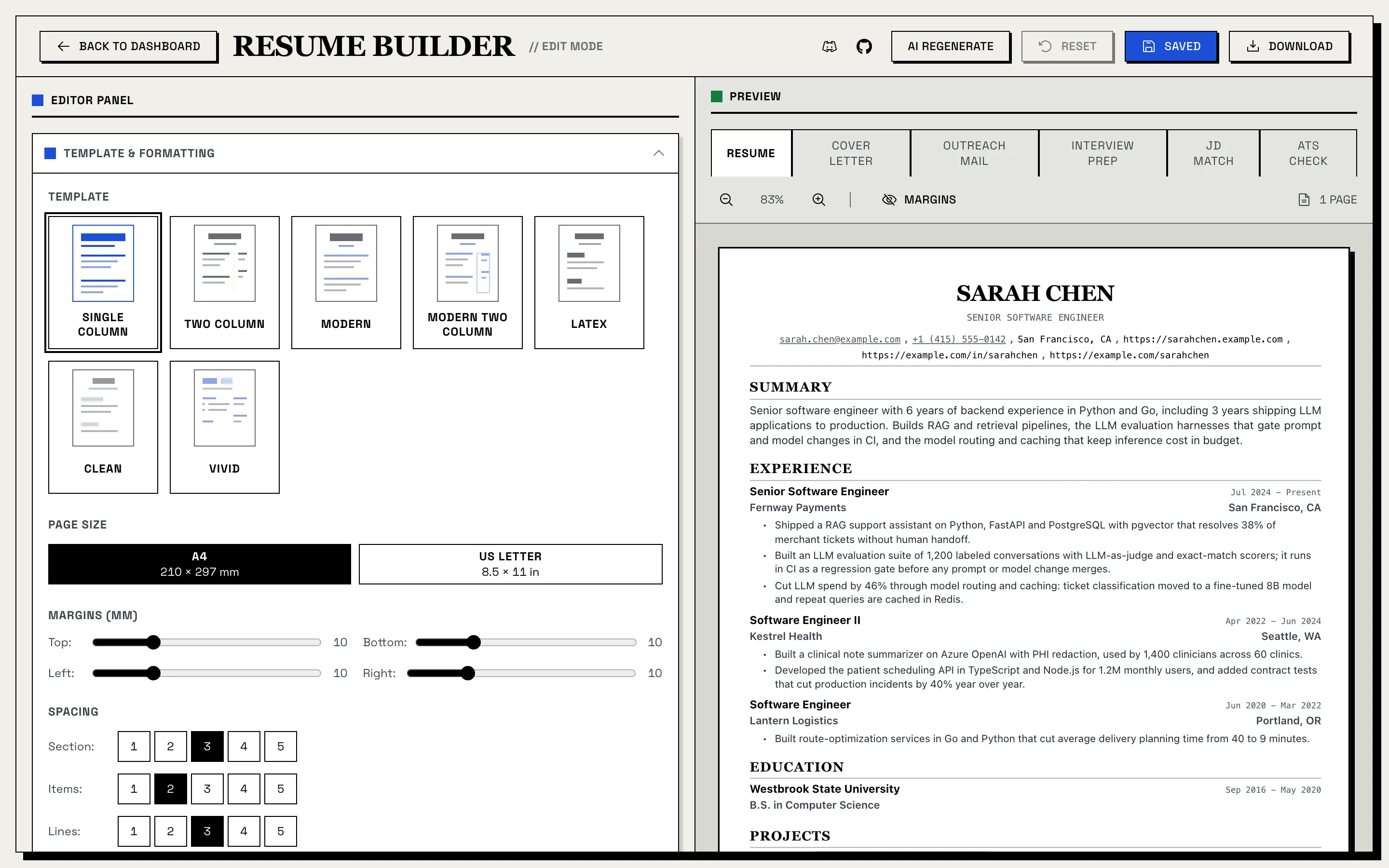
Editing
- Edit every section in place: personal info, summary, experience, education, projects, and skills and awards.
- Format bullet text with bold, italic, underline and links, and toggle the bullet marker per line.
- Add jobs, schools, projects and bullet points; duplicate or remove items.
- Rename, hide, show and reorder sections, with move up/down or drag and drop.
- Add custom sections of three kinds: free text, a list of items (like a job entry), or a simple list of strings.
Preview tools
- Zoom in and out, toggle a margin overlay, and see the live page count.
- Tabs for Resume, Cover Letter, Outreach Mail, Interview Prep, JD Match and ATS Check. Interview Prep and JD Match need a tailored resume; ATS Check works on any saved resume.
Actions
- AI Regenerate: rewrite selected items with your own instruction (see AI Enrichment and AI Regenerate).
- Reset: go back to the last saved version.
- Save: save now. The builder also autosaves as you edit.
- Download: export the resume as a PDF with your current template settings.
Resume Templates
Resume Matcher includes seven templates:
| Template | Layout | Accent color | Best For |
|---|---|---|---|
| Single Column | Traditional single-column layout (the default) | No | General-purpose applications |
| Two Column | Split layout with supporting details in a side column | No | Candidates balancing experience and skills |
| Modern | Contemporary single-column layout | Yes | Cleaner visual presentation with modern styling |
| Modern Two Column | Contemporary split layout | Yes | Dense resumes that still need visual structure |
| LaTeX | Classic LaTeX look, single column (exports a PDF, not a .tex file) |
No | Engineers and academics |
| Clean | Minimal single column | No | A simple, airy look |
| Vivid | Two columns | Yes | A more visual resume |
Two-column templates keep the main content first in the reading order, so text extractors read your experience before the sidebar. PDF Templates shows a preview of each.
Formatting Controls
The Template & Formatting panel in the builder controls the PDF output:
| Control | Options |
|---|---|
| Page size | A4, US Letter |
| Margins | 5–25 mm on each side (default 10 mm) |
| Spacing | Section, item and line spacing, in five steps |
| Font size | Base size, plus the scale of your name and section headers |
| Fonts | Serif, sans-serif or monospace, chosen separately for headers and body text |
| Compact mode | Toggle |
| Contact icons | Toggle |
| Accent colors | Blue, green, orange or red on Modern, Modern Two Column and Vivid |
Reset to defaults puts every control back at any time.
JD Match
On a tailored resume, the JD Match tab puts the job description next to your resume and highlights, in yellow, every job-description keyword your resume already contains.
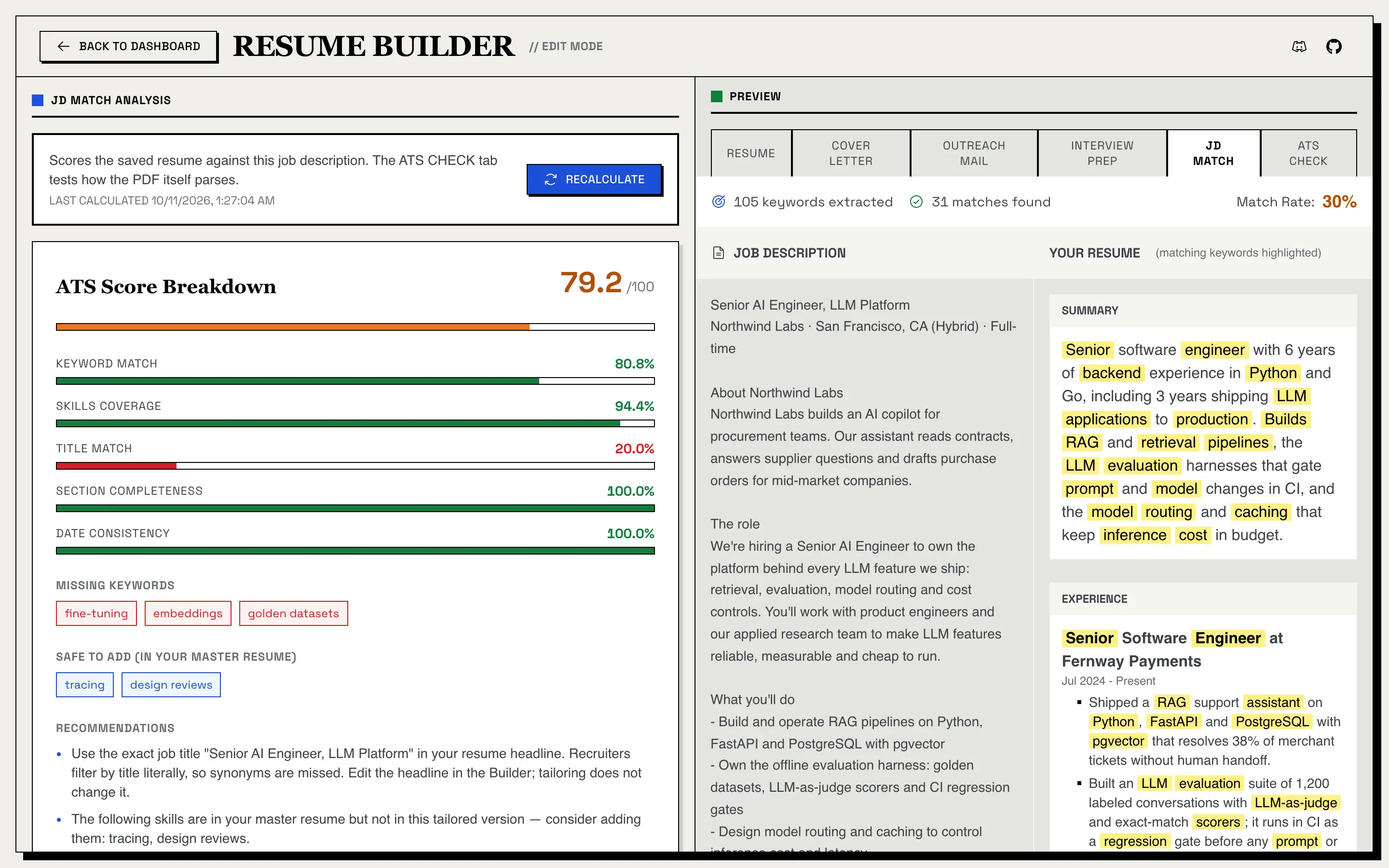
How the match rate is calculated. Plain arithmetic, with no AI involved:
- Take the words in the job description, drop common English words and job-posting filler (such as “team”, “role” and “experience”), and keep words of three or more letters.
- Do the same for your resume.
- Match rate = job-description keywords found in your resume ÷ all job-description keywords.
The rate shows green at 50% or more, amber from 30%, and red below 30%. Because it counts every meaningful word in the posting, including company background, a strong resume often lands in the 30–50% range. Use it to spot missing skills and terms, not as a pass mark. It currently counts plain a–z words only, so accented words and Chinese, Japanese or Korean text aren’t counted.
ATS Score
On a tailored resume, the JD Match tab also shows the resume’s ATS Score Breakdown, scored against the job it was tailored for.
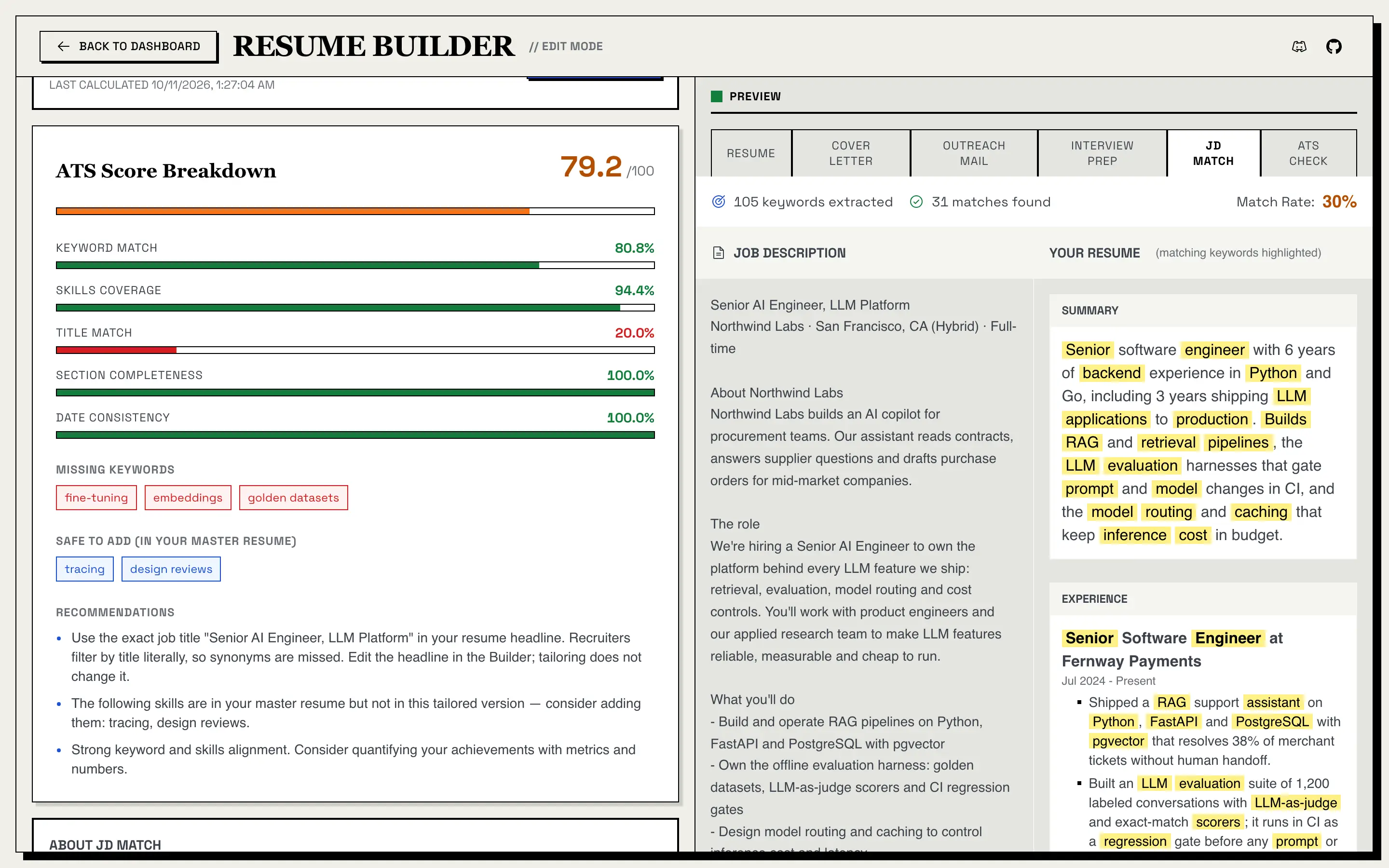
- The score, out of 100, adds up five parts: keyword match (40%), skills coverage (20%), title match (15%), section completeness (15%) and date consistency (10%). A part that can’t be scored, such as title match when the posting has no job title, is left out and the others are reweighted.
- Missing keywords: job keywords that are in neither this resume nor your master resume.
- Safe to add (in your master resume): job keywords your master resume has but this tailored version doesn’t, so adding them invents nothing.
- Recommendations: rule-based tips, such as using the posting’s exact job title in your headline.
The scoring is plain code. It uses the keywords the AI extracted when the job was analyzed, so recalculating makes no AI call. The score is saved with the resume: after you edit, save, then click Recalculate (it’s disabled while you have unsaved changes). Like JD Match, it’s a heuristic, not a prediction of how an employer’s software will rank you.
Resume Matcher runs on donations.
More than 200,000 job seekers have used it, free, with no ads and no paywall. If it saved you time or helped you land an interview, sponsoring or buying a coffee keeps it that way.
ATS Check
The ATS Check tab tests whether software can read your resume’s PDF. It renders the last saved version with your current template and settings, the same PDF Download gives you, then reads the text back the way a plain ATS text extractor does. No AI is involved, and it works on any saved resume, master or tailored.
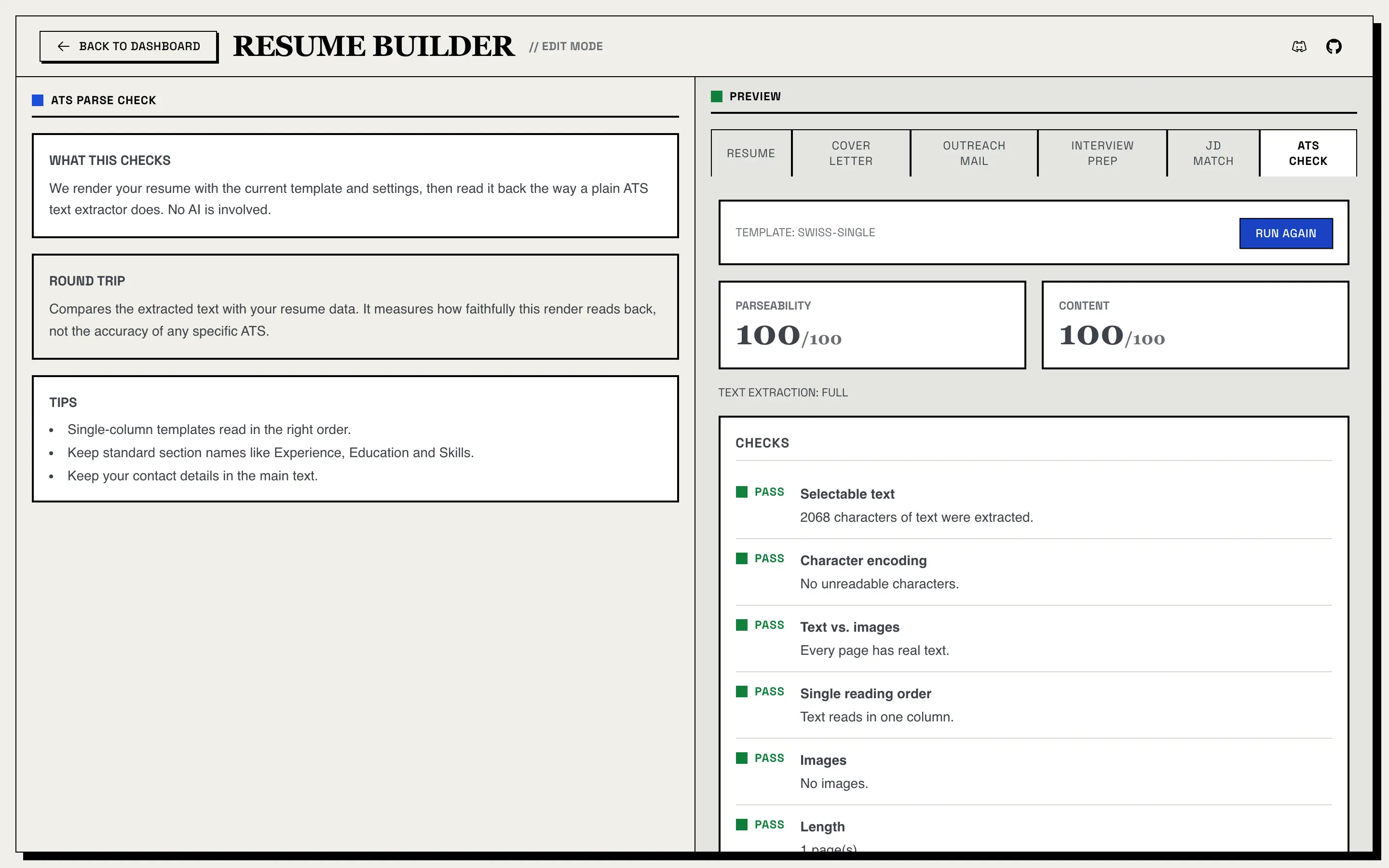
It reports:
- Parseability and Content, each out of 100. A check that fails or warns takes points off, more for serious problems.
- Text extraction: full, partial or none.
- Checks, each marked pass, warn or fail: selectable text, character encoding, text vs. images, single reading order, headers and footers, images, length (it warns above two pages), contact details, section headings (Experience, Education, Skills) and dates.
- Round trip: how much of your resume’s data comes back out of the PDF (each field found, garbled or missing) and whether the reading order holds. It measures how faithfully this render reads back, not how accurate any specific ATS is.
On a two-column template, the reading-order check suggests a single-column one for ATS-heavy applications. Unsaved edits aren’t included, so save first, and click Run again after you change anything; results aren’t saved. Like PDF export, the check needs the frontend running and Chromium (see PDF Export).
Application Extras
Resume Matcher also generates supporting application materials for each tailored resume. They’re written from the same resume and job description as the tailoring, so your application materials stay consistent. Generate them from their tab in the builder at any time. To create them automatically each time you confirm a tailored resume, turn them on under Settings > Content Generation (all three are off by default).
Cover Letters
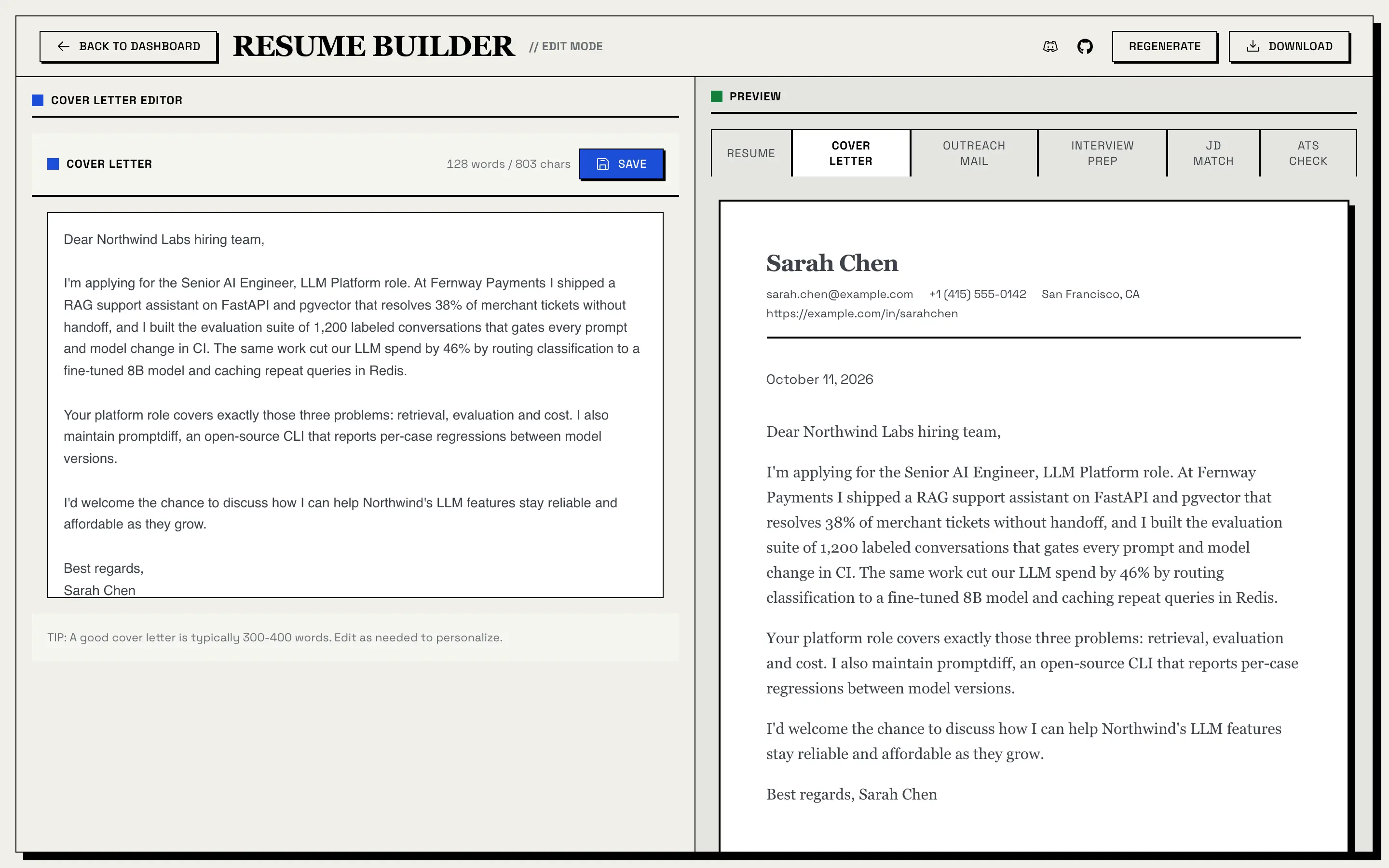
- A short letter (100–150 words) written from your resume for the specific job. The prompt tells the model not to invent anything that isn’t in your resume.
- Edit it on the left; the right side shows the print layout with your contact details and the date.
- Save your edits, Regenerate a new draft, or Download it as a PDF.
Outreach Messages
A 70–100 word cold email or LinkedIn message for the same job, written from your resume. On the Outreach Mail tab you can edit it, regenerate it, and copy it to your clipboard.
You can replace the default cover letter and outreach prompts with your own under Settings > Content Generation. A custom prompt must keep the {job_description}, {resume_data} and {output_language} placeholders.
Interview Prep
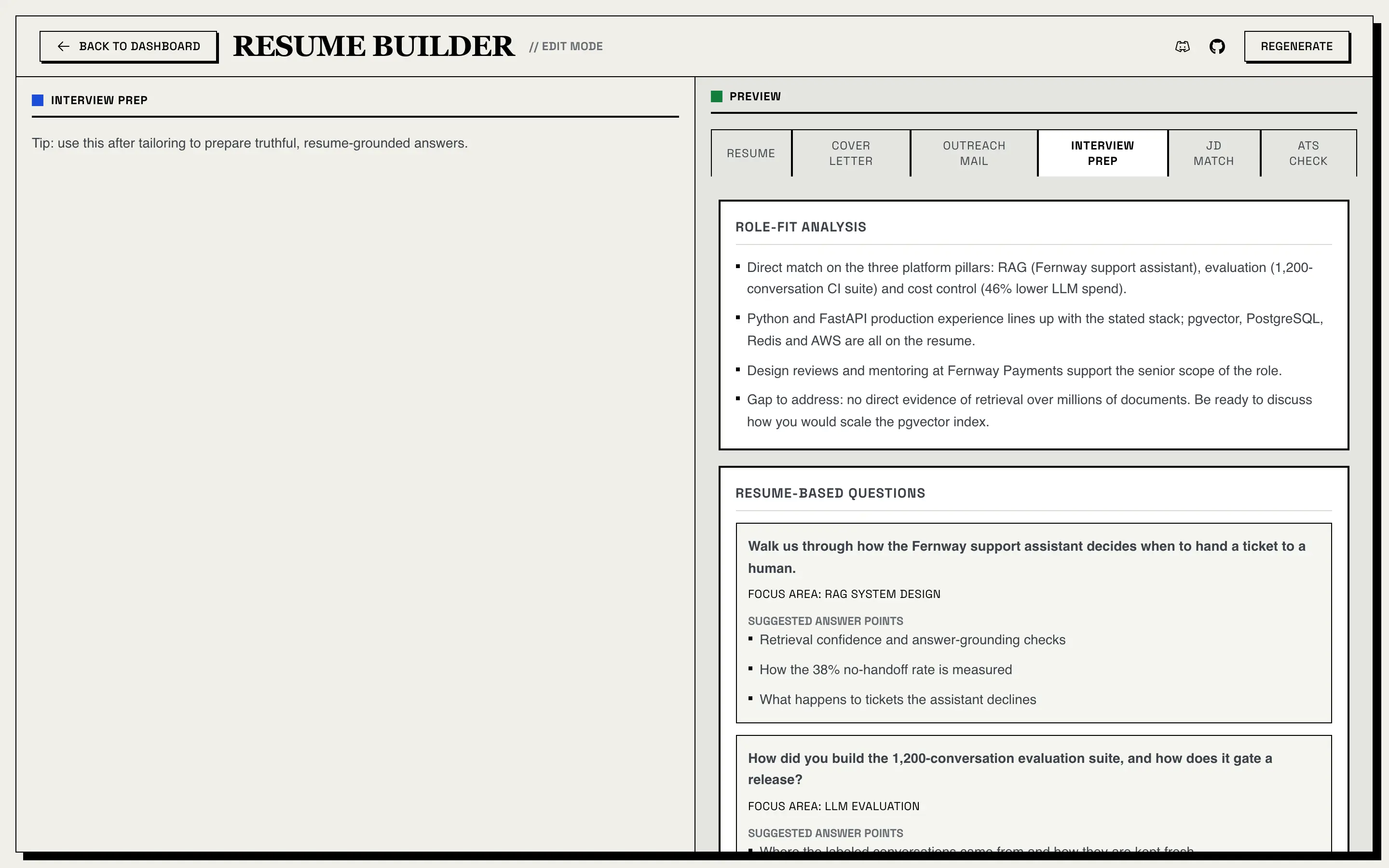
For each tailored resume, interview prep produces:
- Role-fit analysis: where your experience lines up with the job, and the gaps to address.
- Resume-based questions: questions an interviewer is likely to ask about your resume, each with a focus area and suggested answer points.
- Project follow-ups: deeper questions about your projects.
- Skill gaps: skills the job asks for, why they matter, and how to prepare. These are preparation targets, not skills added to your resume.
- Talking points: short themes to come back to.
Generate it from the Interview Prep tab, and regenerate it at any time.
AI Enrichment and AI Regenerate
AI enrichment (master resume). Open your master resume’s page and click Enhance Resume. The AI looks for thin experience and project entries and asks you up to six questions about them. From your answers it writes two to four new bullet points per item, which you review (“Keeping” versus “Adding”) before clicking Add to Resume. It only uses details you provide; it doesn’t invent metrics.
AI Regenerate (any resume). In the builder, click AI Regenerate, choose the experience entries, projects or skills to rework, and write an instruction such as “use stronger action verbs” or “emphasize leadership”. You get a before-and-after preview before anything is applied. The prompt forbids new facts, metrics, dates, companies, titles or accomplishments.
AI Regenerate is not the same as Reject & Regenerate in the tailoring preview, which discards the whole tailored draft and runs tailoring again.
Application Tracker
The tracker is a Kanban board for your job search. Every tailored resume you confirm gets a card automatically, and you can add cards by hand for jobs you haven’t tailored for yet.
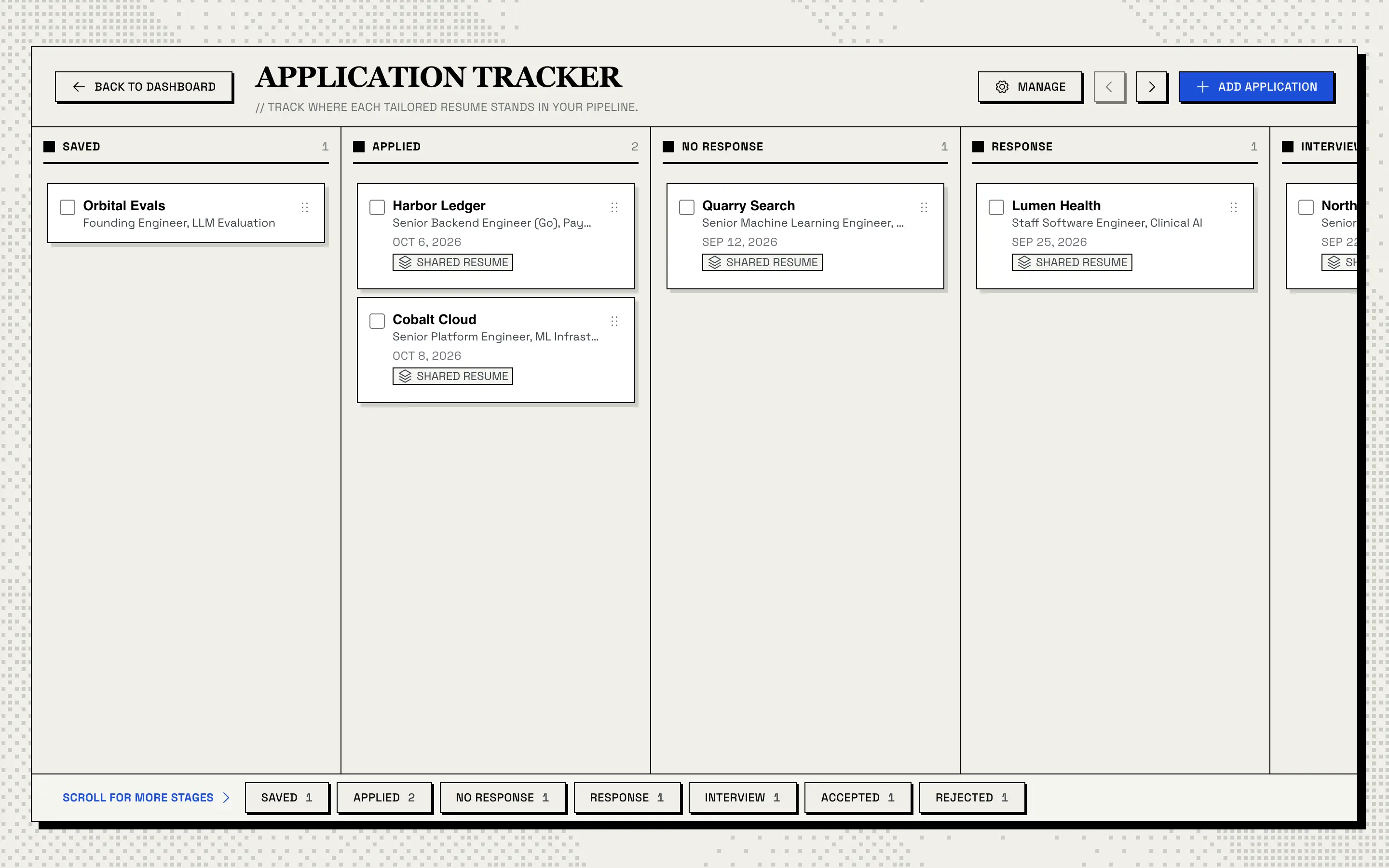
Seven stages: Saved, Applied, No Response, Response, Interview, Accepted and Rejected.
Cards show the company, the role, the date you applied, and a Shared resume badge when the same master resume backs more than one application. The date is stamped automatically when a card is created in any stage other than Saved, or when it first moves out of Saved.
Working with the board
- Drag and drop cards to reorder them within a column or move them to another stage.
- Scroll with the arrow buttons, or jump to a stage with the chips along the bottom.
- Select several cards with their checkboxes to move them all with Move to…, or delete them in one go.
- Manage lets you hide stages you don’t use. At least one stage always stays visible.
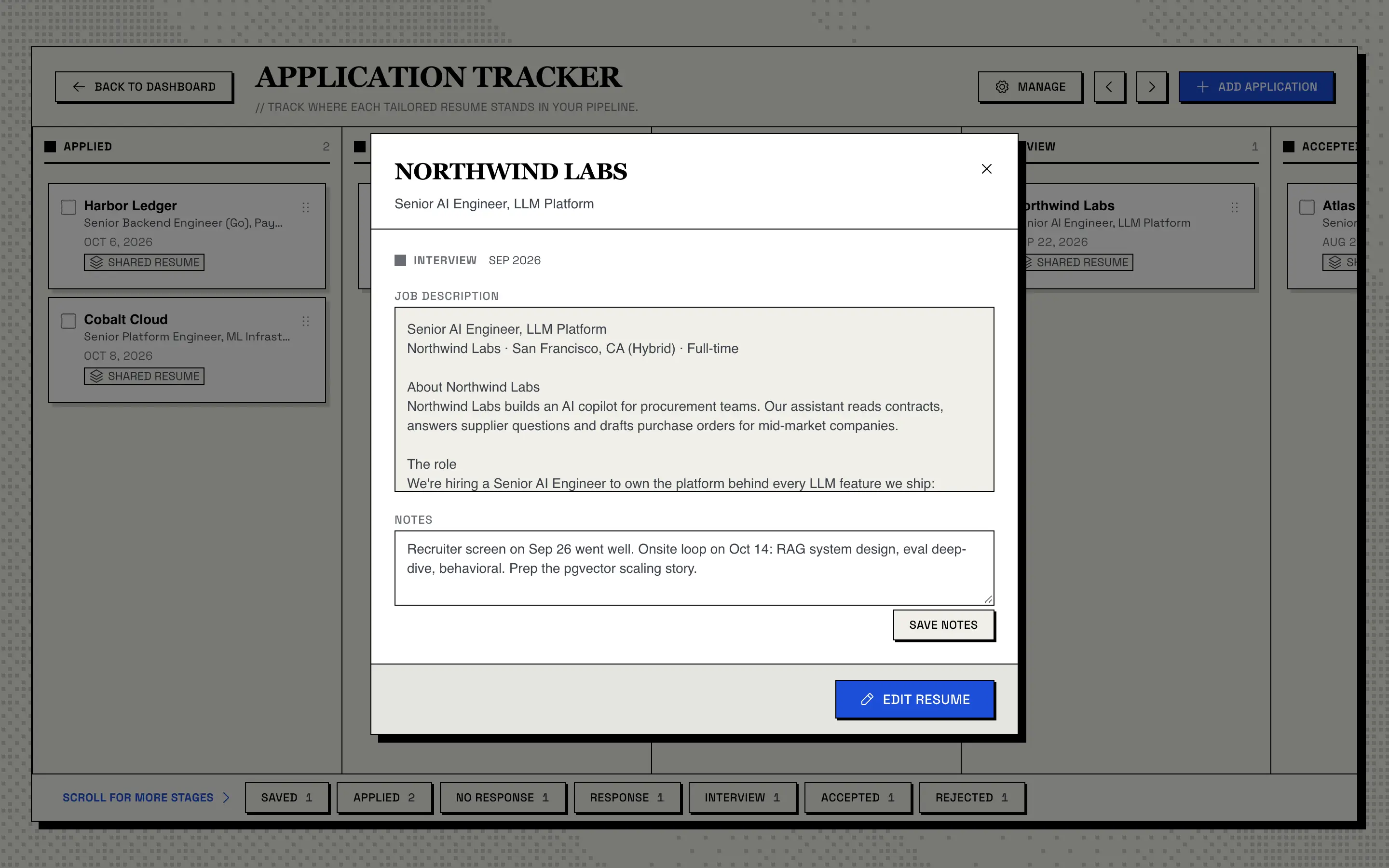
Card details. Click a card to see the full job description, keep notes, and open the exact resume you applied with (Edit Resume takes you to the builder). If that resume has since been deleted, the card still opens and tells you.
Add an application by hand. Click Add Application, choose a resume, paste the job description, and pick a starting stage, such as Saved for a job you plan to tailor for later. Company and role are optional: leave them blank and the AI extracts them from the job description.
Multilingual Support
Resume Matcher supports seven languages:
- English
- Spanish
- Chinese (Simplified)
- Japanese
- Portuguese (Brazilian)
- French
- Korean
The UI language changes the interface. The content language is the language the AI writes in: tailored resumes, cover letters, outreach messages and interview prep. They’re set separately in Settings, so you can use the interface in English and write a resume in Japanese. PDFs include Noto Sans fonts for Chinese, Japanese and Korean text. See Internationalization.
PDF Export
Resumes and cover letters export as PDF. The app opens a headless Chromium browser on a print-only version of your resume and prints it, so:
- The PDF contains real text, not an image of text. Every word can be selected, copied and read by software.
- Headings are real headings, and two-column layouts keep the main content first in the reading order.
- It matches the builder, with the template, fonts, spacing and page size you chose.
PDF export needs the frontend running, because Chromium prints the frontend’s print page. Locally, install Playwright’s Chromium (uv run playwright install chromium) or have Chrome or Edge installed; the Docker image includes everything.
AI Providers and Privacy
Supported providers:
- OpenAI
- Anthropic
- OpenRouter
- Google Gemini
- DeepSeek
- Groq
- Azure AI Foundry
- Ollama
- Any OpenAI-compatible server (llama.cpp, vLLM, LM Studio)
- ChatGPT plan: sign in with your ChatGPT Plus or Pro account instead of an API key
- Claude plan: runs your own Claude Code CLI, signed in to your Claude account
See Bring Your Own AI Key for setup, and for the caveats of the two plan options.
Stored on your machine. Everything lives in one folder, apps/backend/data/, or in the Docker volume:
resume_matcher.db: an SQLite database with your resumes, job descriptions, tailored versions, tracker board and tailoring queue. It needs no setup; to use PostgreSQL instead, see Use PostgreSQL Instead of SQLite.config.json: non-secret settings- API keys, encrypted at rest with a secret key file readable only by your user account, and, if you use the ChatGPT plan, its sign-in tokens, encrypted the same way
What leaves your machine. Only the AI requests you trigger, sent to the provider you chose. With a cloud provider, that includes your resume (with your contact details) and the job description. The app contains no analytics or tracking code. At startup, the AI library (LiteLLM) fetches a public model price list; that request carries none of your data.
Fully local. Use Ollama or another local model server, and your resume, the job descriptions and every AI output stay on your computer.
Danger zone. In Settings, Clear API keys removes every stored key, and Reset database deletes all resumes, jobs, generated content and the tailoring queue. Neither can be undone.
Use It from Claude Code (MCP)
Resume Matcher also ships an MCP server, so Claude Code, Claude Desktop, Cursor, Codex or another MCP client can work with your resumes directly. The client’s model writes the content; Resume Matcher stores, checks, scores and renders it, in the same database as the web app, and needs no AI key of its own. It works with a local install, not Docker. See Use Resume Matcher from Claude Code & Claude Desktop (MCP).
What Resume Matcher Doesn’t Do
- It isn’t a hosted website. You run it yourself, locally or in Docker. It’s built for one user.
- It doesn’t apply for jobs or connect to job boards or employers’ systems. The tracker is your own record.
- It doesn’t predict how an ATS ranks you. The ATS Check tests whether text reads back out of Resume Matcher’s own PDF, and the ATS score and JD Match are keyword and section heuristics. None of them simulates an employer’s applicant tracking system.
- It doesn’t write a resume from nothing. It works from your uploaded resume or your answers in the wizard.
- It doesn’t read scanned PDFs. Files need a text layer.
- It exports PDF only. Word files are accepted as input, not output.