
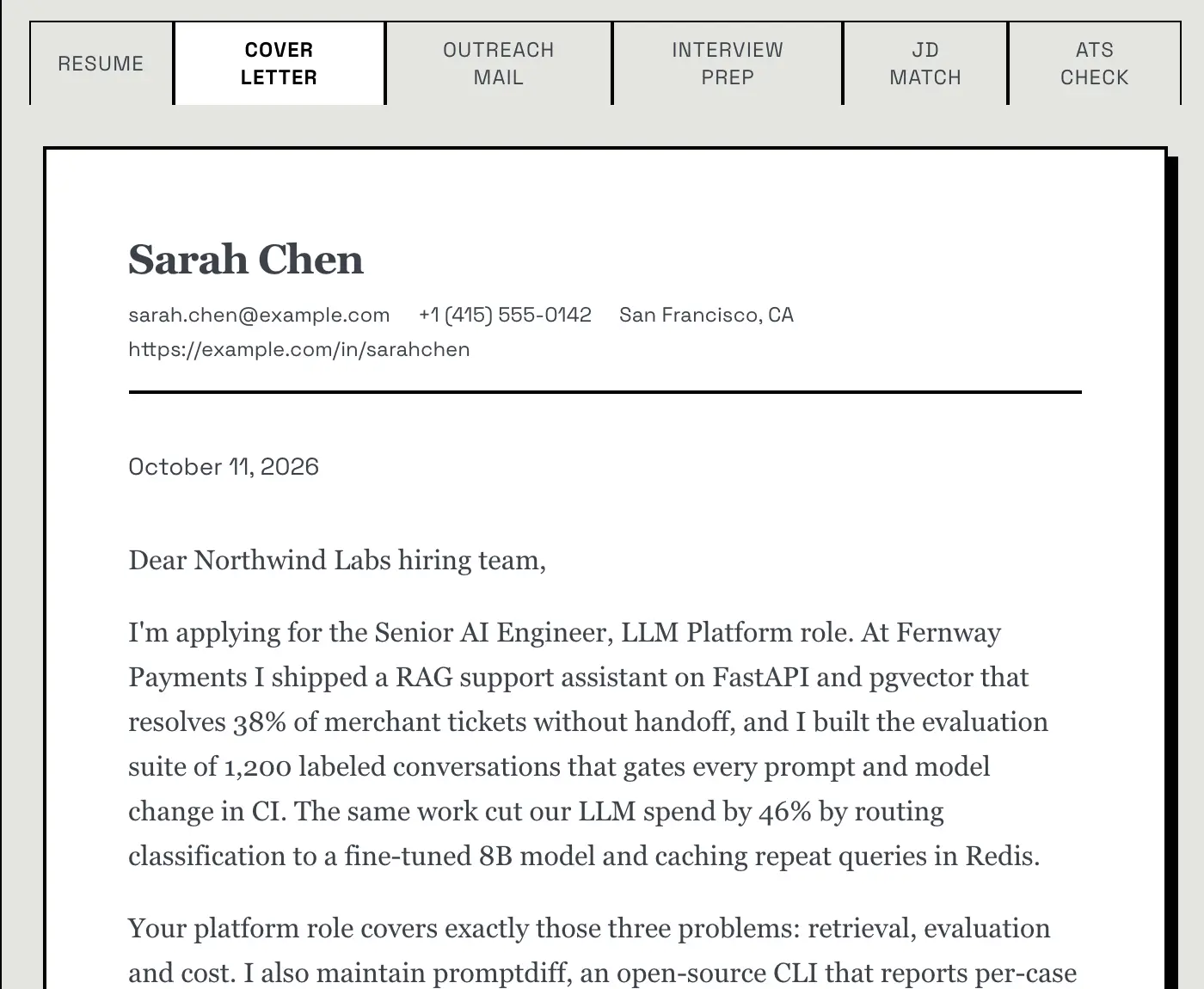
Cover letter
A short letter, 100–150 words, written from your resume for the specific job. The prompt tells the model not to invent anything that isn't in your resume. Edit it beside the print layout, then save, regenerate or download it as a PDF.
Everything Resume Matcher does, in the order you'll use it. Paste a job description, review every change the AI proposes, polish the resume in the builder, write the cover letter and track the application. On your own machine, with the AI model you choose.
Connect an AI model. In Settings: a cloud provider with your own API key, or a local model.
Add a master resume. Upload a PDF or Word file, or build one with the Resume Wizard.
Paste a job description. The AI proposes targeted edits to your master resume.
Review the changes. In a before-and-after preview, then confirm or regenerate.
Polish it in the builder. Pick a template, adjust the layout, edit anything.
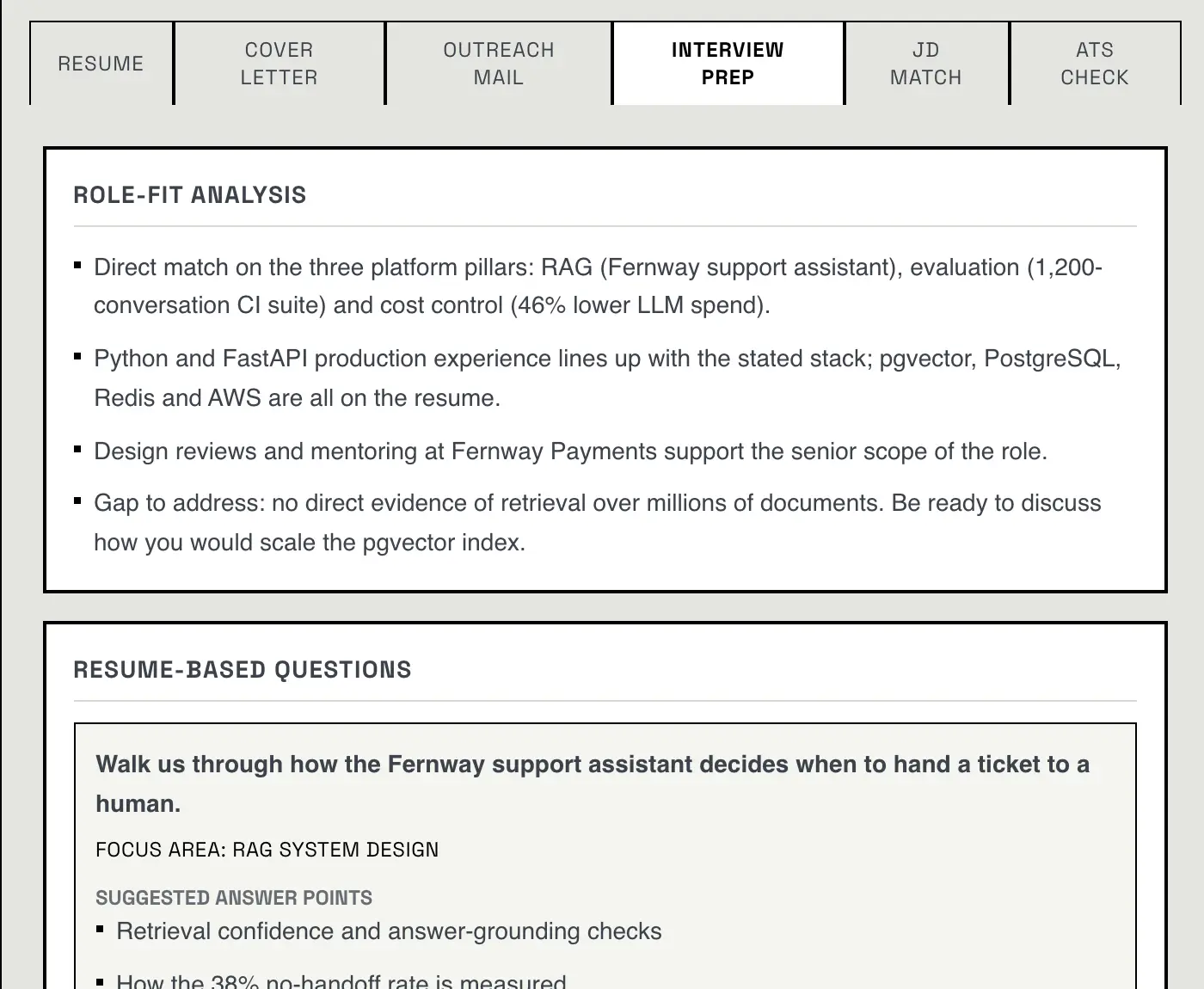
Generate the extras. A cover letter, an outreach message and interview prep for the same job.
Download. The resume and the cover letter, as PDFs.
Track the application. On a Kanban board. Confirming a tailored resume adds its card for you.
Tailoring rewords what's already in your resume. It doesn't invent experience, and on the Tailor page nothing is saved until you've read the changes and confirmed them.
2 pages
default page limit, with the least relevant bullets trimmed to fit
0
new numbers: a rewritten line that adds one is reverted
4 min
time limit on a tailoring run, by default
A master resume is your complete, untailored resume: every job, project and skill in one place. Upload a PDF, DOC or DOCX file up to 4 MB and the AI turns it into structured sections you can edit, keeping a copy of the original text. Scanned, image-only PDFs have no text layer and are rejected; run them through OCR first.
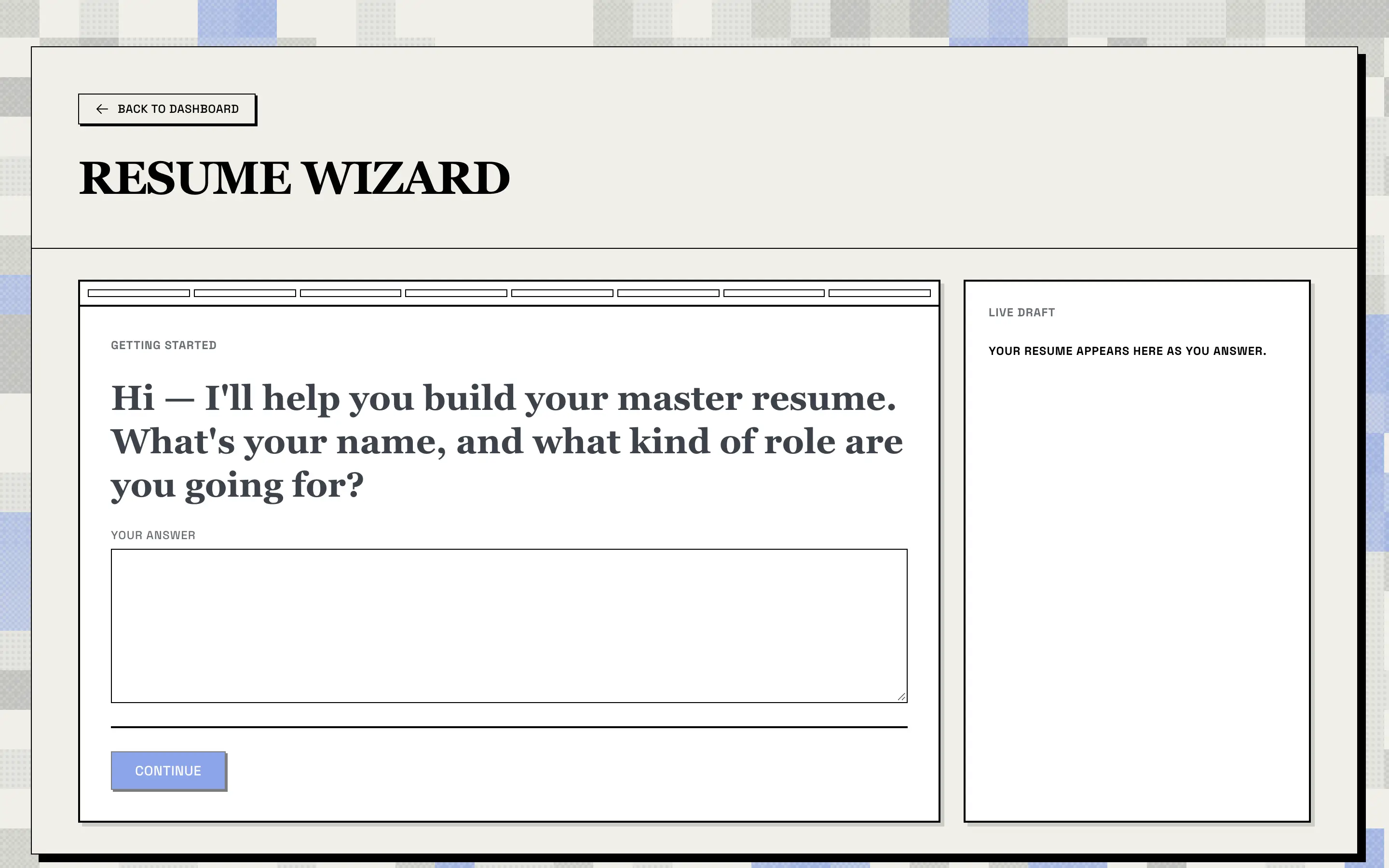
No resume file? The Resume Wizard asks one question at a time, at most 15, and builds the resume in a live draft as you answer. It's instructed never to invent employers, titles, dates, degrees, certifications, metrics, tools or skills.
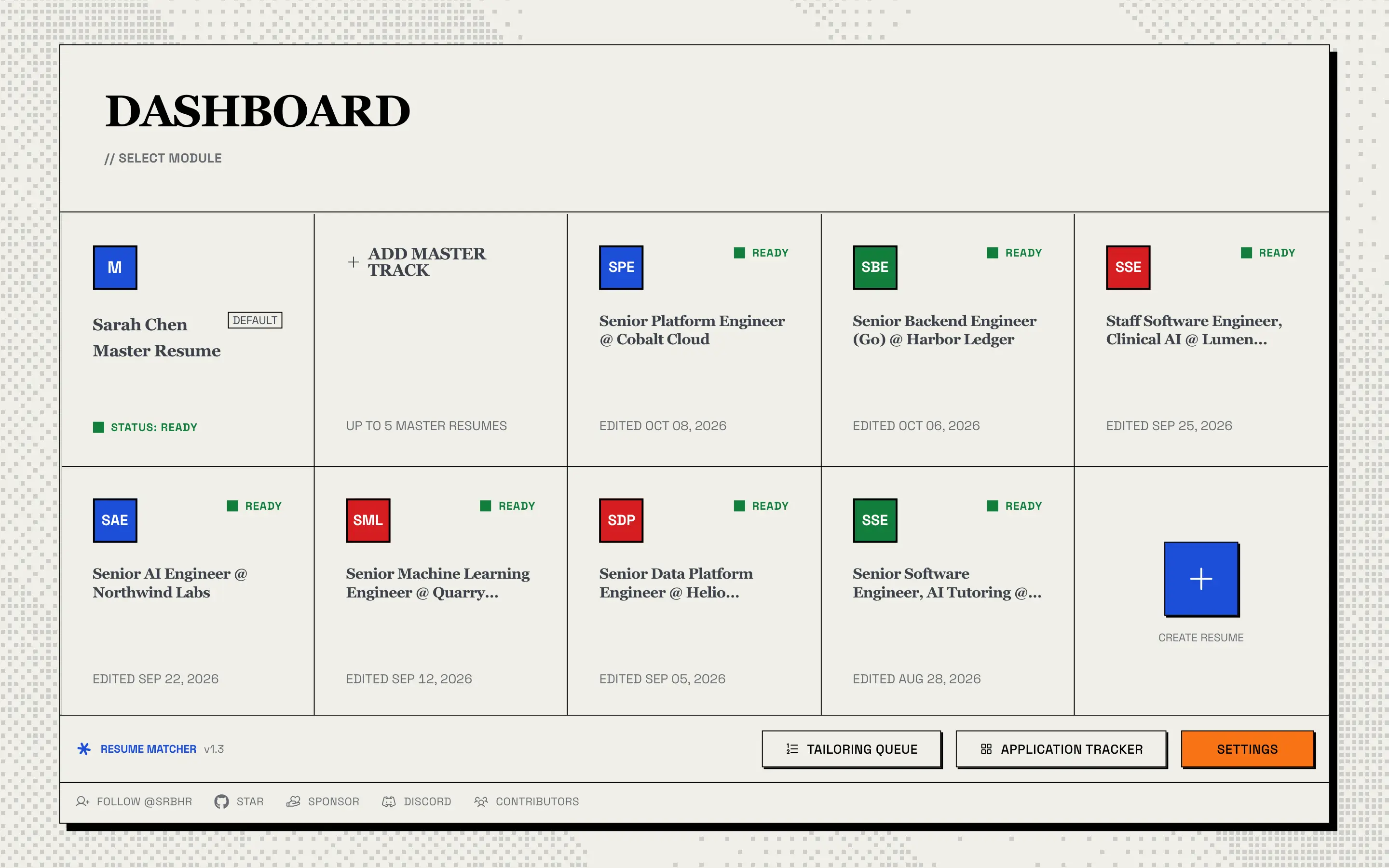
Keep up to five master resumes as career tracks, say one for backend roles and one for ML. Exactly one is the default, and the Tailor page starts from it.
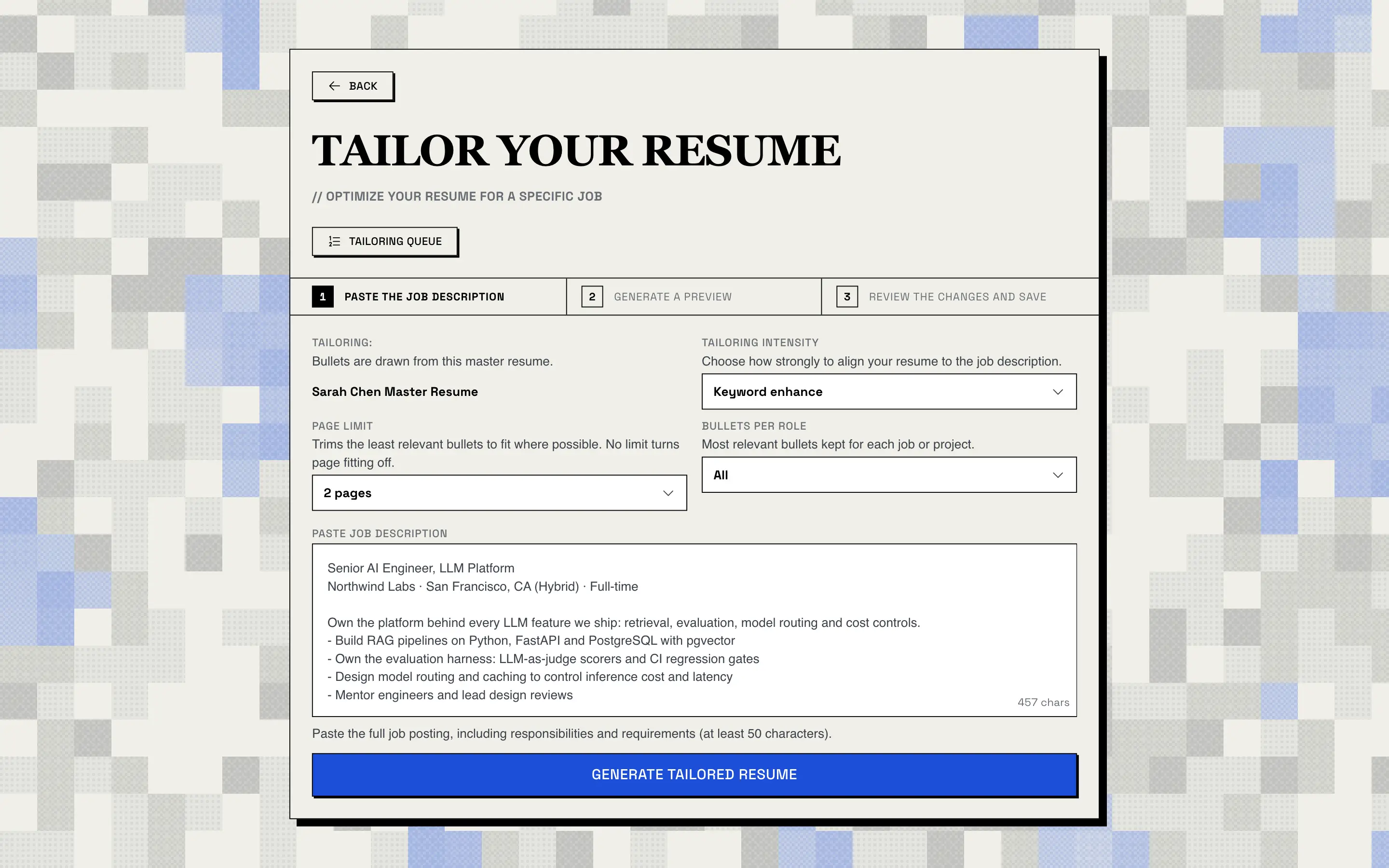
Pick how hard to tailor, set a page limit (1–3 pages, or none) and how many bullets to keep per role, paste the posting (up to 100,000 characters) and click Generate Tailored Resume.
AI
The AI extracts the company, role, required and preferred skills, key responsibilities and keywords. They're saved with the job, which is how the tracker card later gets its company and role without another AI call.
AI Code
The AI scores each bullet point for relevance to the job. It only scores; it can't rewrite or invent bullets. Code then keeps the most relevant bullets per job or project, up to your cap, and by actually rendering the page drops the least relevant ones until the resume fits your page limit.
AI Code
The AI proposes which skills to emphasise. Code accepts a skill only if it's already in your resume, appears in your resume's text, or is a required or preferred skill that appears word for word in the job description.
AI Code
Instead of rewriting your whole resume, the AI returns a list of specific edits, each quoting the original text it replaces. Code verifies every quote against your resume and rejects edits aimed at protected fields.
Code
Code restores your personal details and dates, keeps every original skill, removes a list of overused "AI-sounding" phrases (unless the job description uses them), and reverts any rewritten line that introduces a number your original doesn't contain.
The whole run has a time limit, four minutes by default, so a slow model can't hang the app.
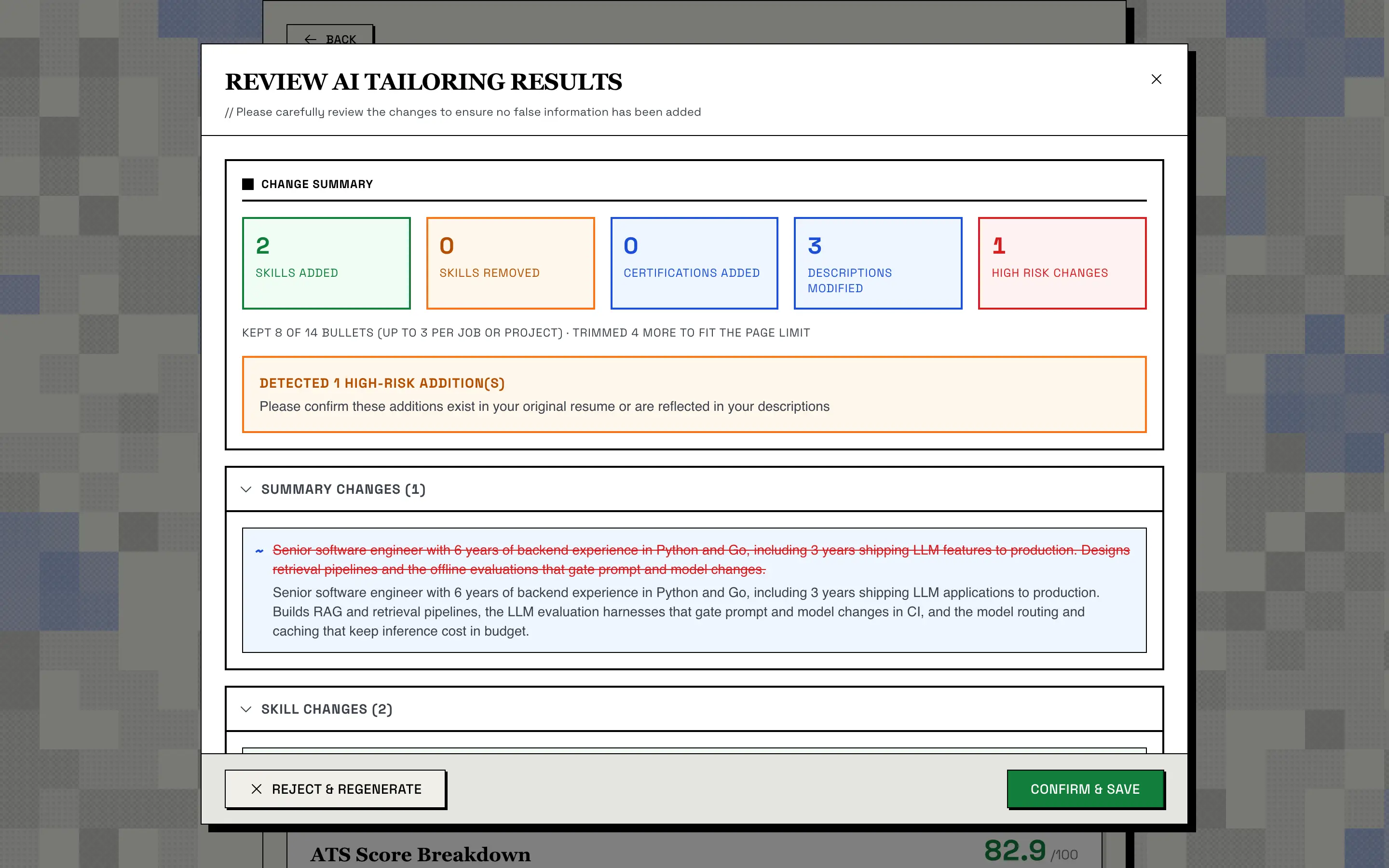
The preview shows:
A change summary: skills added and removed, certifications added, descriptions modified, and high-risk changes.
What bullet selection did, for example "Kept 8 of 14 bullets (up to 3 per job or project) · Trimmed 4 more to fit the page limit".
A high-risk warning when the AI added something, usually a skill taken from the job description, so you can confirm it's true for you.
Before-and-after diffs for the summary, the skills and each changed bullet.
Confirm & Save keeps the result; Reject & Regenerate discards it and tries again. The decision covers the whole preview. Guardrails stop invented numbers, employers and dates, but wording can still overstate your role. Read every change: you're the final check.
When you confirm, the tailored resume is saved as a new resume titled "Role @ Company", linked to its master and its job. Its card lands in the Applied column of the tracker, and if you switched them on in Settings, a cover letter, an outreach message and interview prep are generated with it. Everything stays editable in the builder.
With the preview, an ATS Score Breakdown card appears under the form. It's a weighted heuristic of keyword match, skills coverage, job-title match, section completeness and date consistency, not a simulation of any real applicant tracking system. When you confirm, it's saved with the tailored resume.
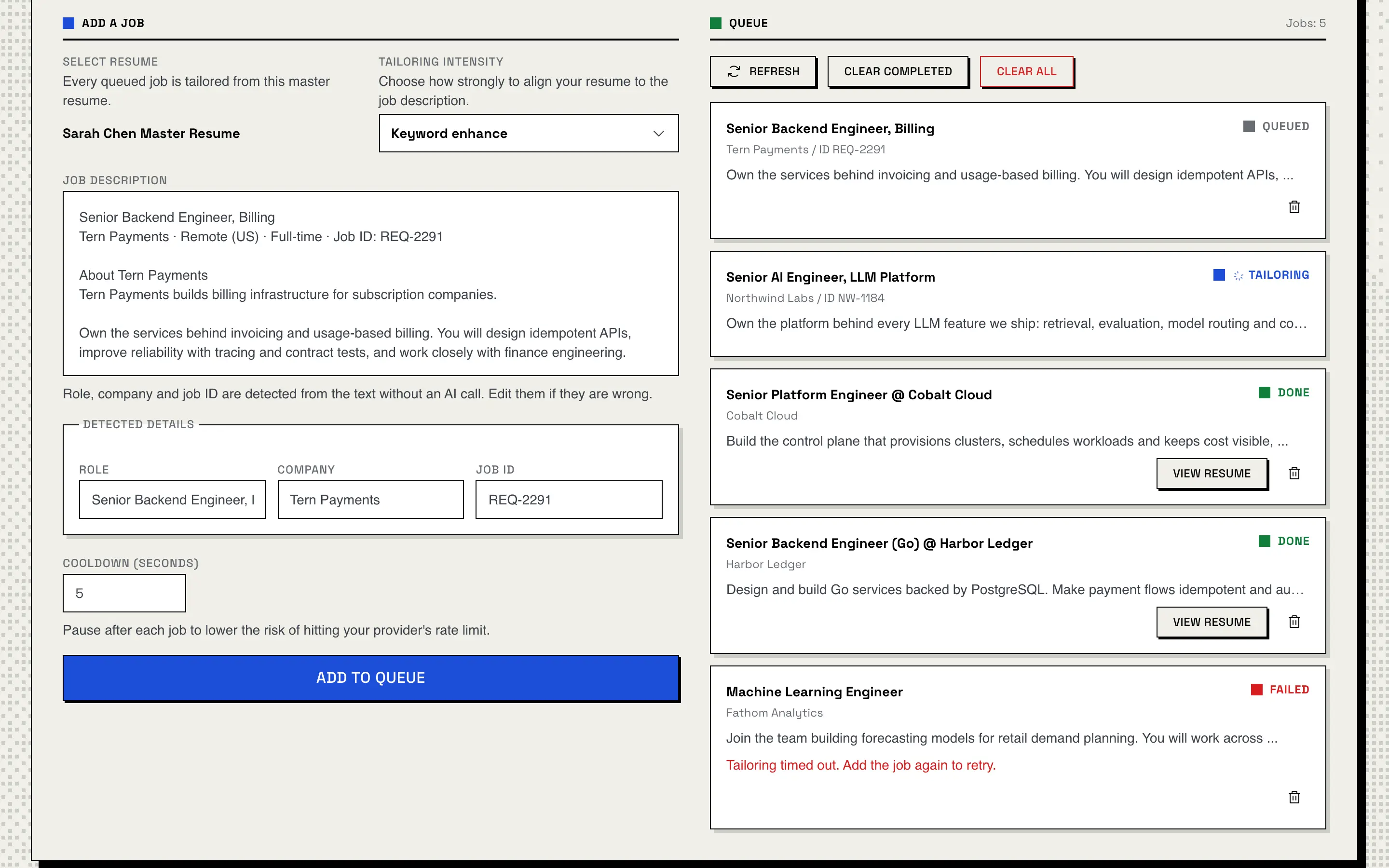
Applying to several jobs at once? Paste each job description into the Tailoring Queue, and Resume Matcher tailors them one after another, with a short cooldown between jobs (5 seconds by default) to stay clear of your provider's rate limit. The role, company and job ID are detected from the text without an AI call.
Queued jobs skip the review step. Each one runs the same targeted edits and safety nets, then is saved straight away as a tailored resume, with its tracker card, its ATS score and any extras switched on in Settings. The queue keeps every bullet and ignores the page limit, so read each result in the builder before you send it.
The queue is kept in the database, so it survives a reload or a restart. A job that fails, for example by running past the time limit, isn't retried: add it again.
Tailoring is designed to reword, not to invent. These rules are enforced in code, not just requested in the prompt.
Reword your summary and bullet points using the job's language
Reorder and emphasise skills
Choose which bullets to keep, within your page limit and bullets per role
Add a skill the job requires, if it appears word for word in the job description (flagged as high risk)
Change your name, email, phone, location or links
Change employers, job titles or dates
Change schools, degrees or education dates
Add a number, percentage or metric that isn't in your original
Remove your existing skills, certifications, languages or awards
Add new jobs, schools or projects
Touch your custom sections
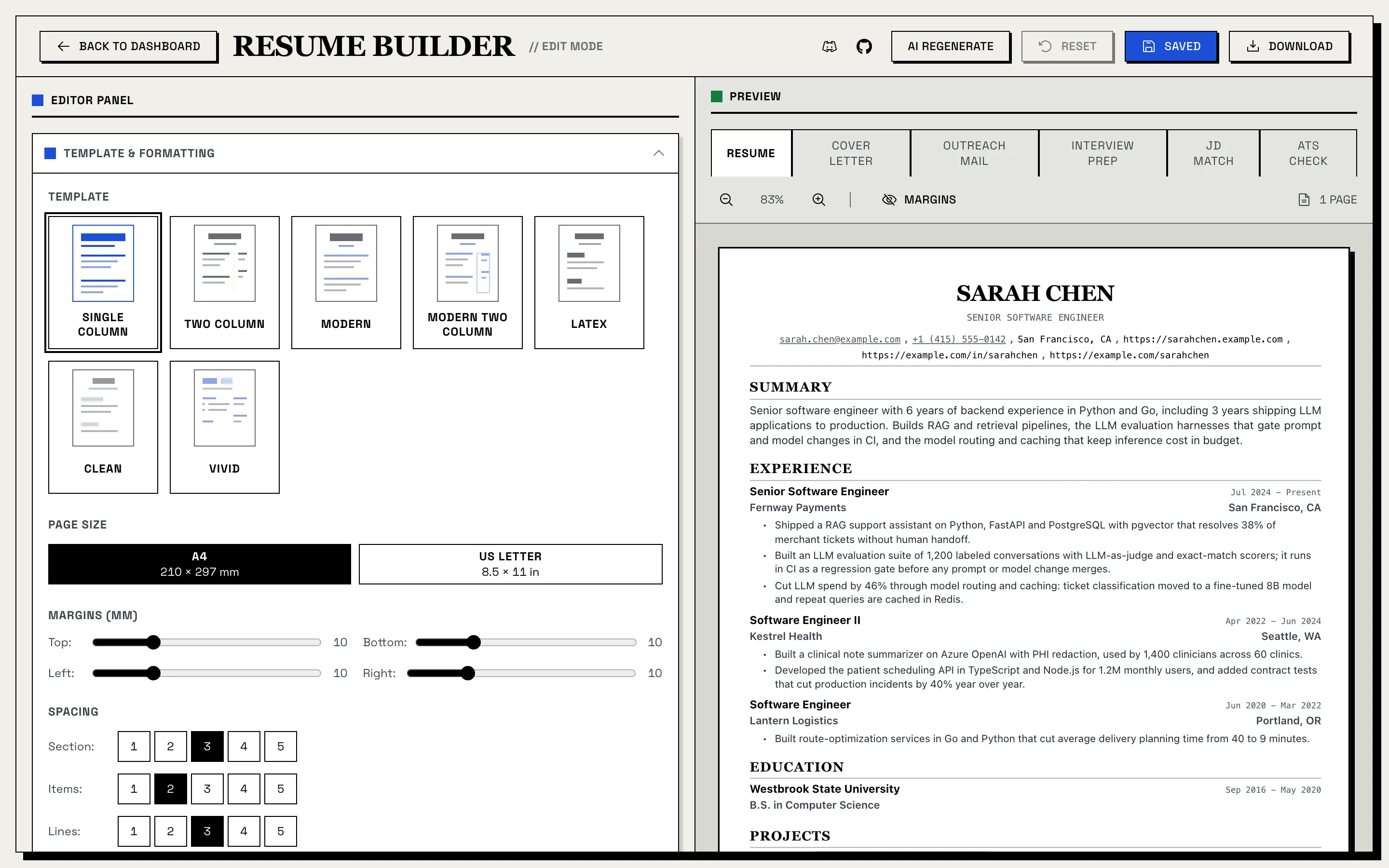
Every resume, master or tailored, opens in the builder: an editor on the left and a live, paginated preview on the right, with tabs for the resume, cover letter, outreach mail, interview prep, the ATS check and, on tailored resumes, JD Match.
7
templates, in one and two columns
A4 / Letter
page sizes, printed as the preview shows
5–25 mm
margins on each side, 10 mm by default
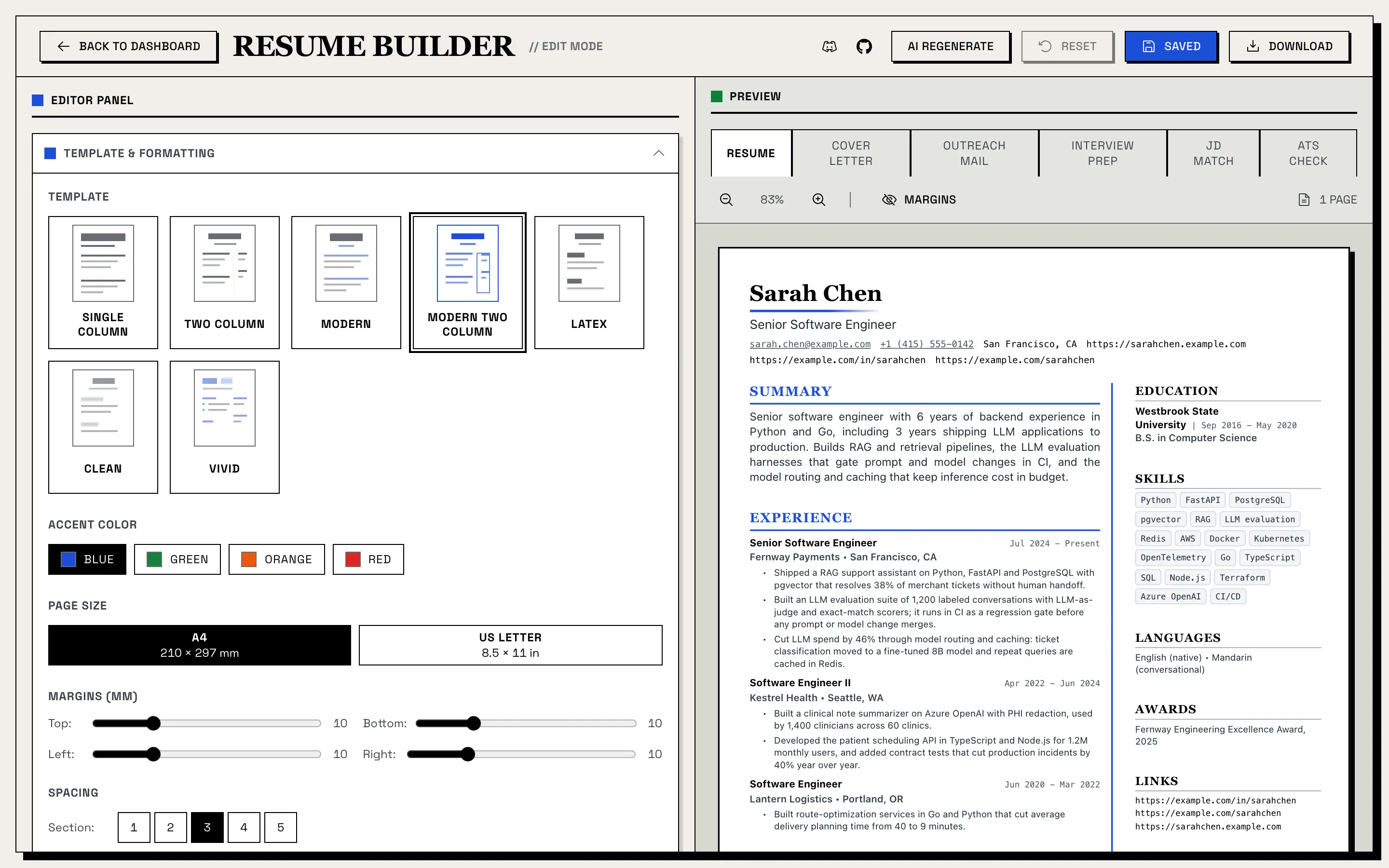
Single Column
1 column
Two Column
2 columns
Modern
1 column, accent colour
Modern Two Column
2 columns, accent colour
LaTeX
1 column
Clean
1 column
Vivid
2 columns, accent colour
Two-column templates keep the main content first in the reading order, so text extractors read your experience before the sidebar.
On a tailored resume, the JD Match tab puts the job description next to your resume and highlights, in yellow, every job-description keyword your resume already contains.
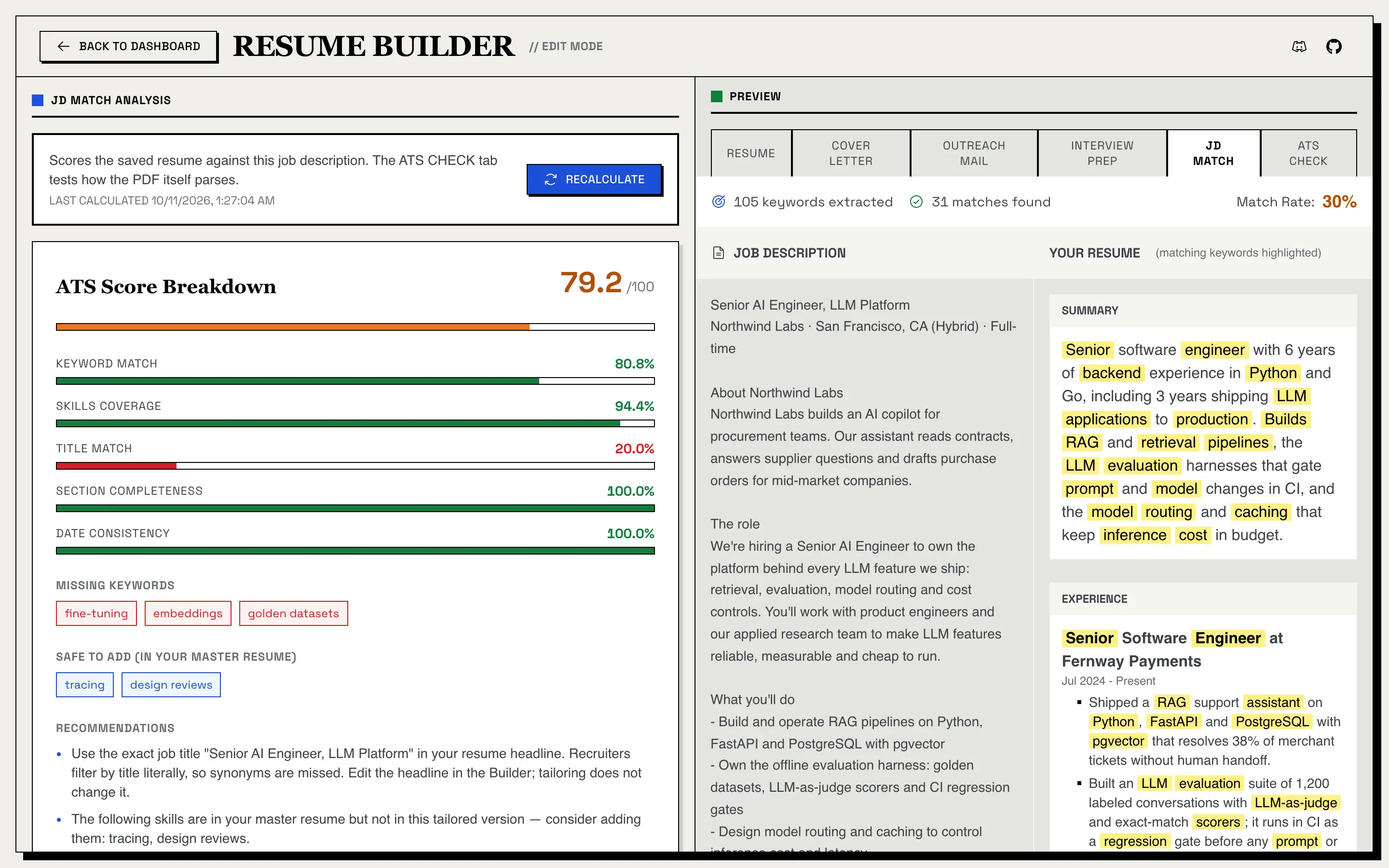
The match rate is plain arithmetic, with no AI involved:
Take the words in the job description, drop common English words and job-posting filler (such as "team", "role" and "experience"), and keep words of three or more letters.
Do the same for your resume.
Match rate = job-description keywords found in your resume ÷ all job-description keywords.
Job description
We are hiring a backend engineer to build Python services on Kubernetes. You will run Postgres, Redis and Kafka and cut latency with the team.
Your resume
Built Python services on Kubernetes; cut latency by 40%.
10 keywords · 4 found
Match rate: 4 ÷ 10 = 40%
It shows green at 50% or more, amber from 30%, and red below 30%. Because it counts every meaningful word in the posting, company background included, a strong resume often lands in the 30–50% range. Use it to spot missing skills and terms, not as a pass mark. It currently counts plain a–z words only, so accented words and Chinese, Japanese or Korean text aren't counted.
Neither simulates an employer's applicant tracking system. They test what you control: whether software can read your PDF, and how well the resume covers the job.
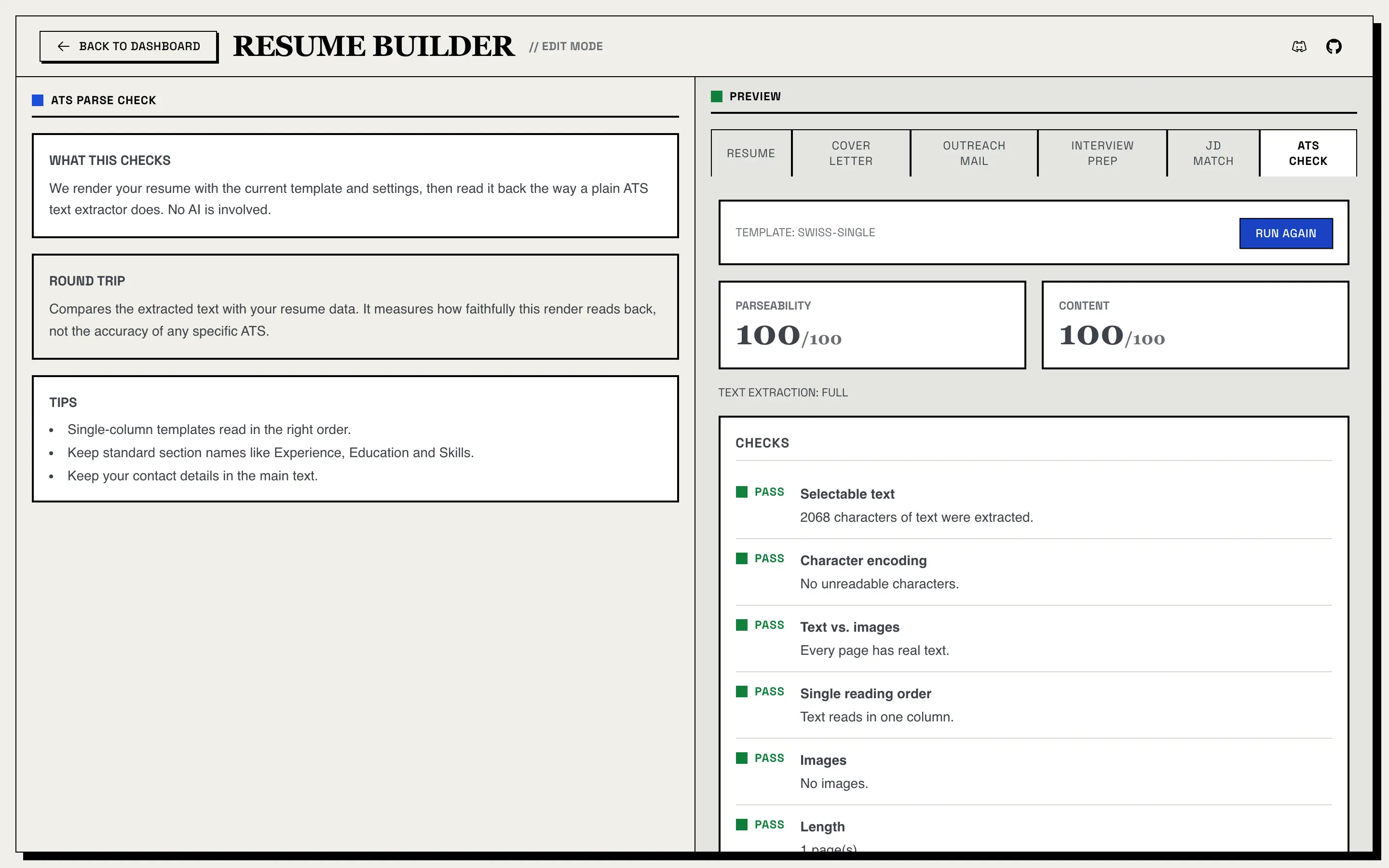
The ATS Check tab renders your last saved resume with the current template, the same PDF that Download gives you, and reads it back the way a plain ATS text extractor does. No AI is involved. It scores parseability and content out of 100 and lists every check: selectable text, character encoding, text vs. images, a single reading order, headers and footers, images, length, contact details, section headings and dates. A round trip compares the extracted text with your resume data. It works on any saved resume.
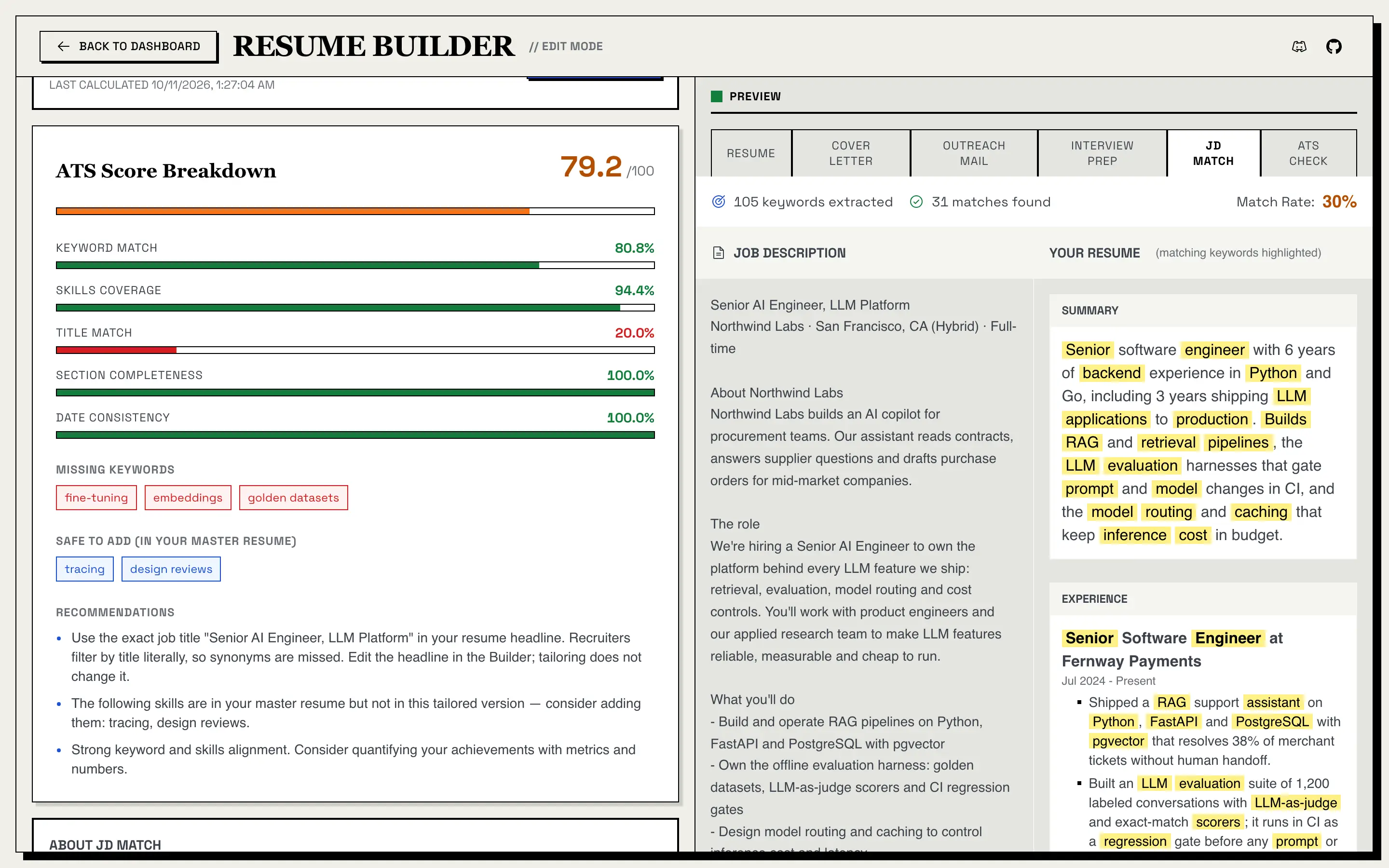
On a tailored resume, the ATS Score Breakdown scores the resume against its job: 40% keyword match, 20% skills coverage, 15% job-title match, 15% section completeness and 10% date consistency. It lists missing keywords, keywords from your master resume that are safe to add, and recommendations. It's saved with the resume; after you edit, save and click Recalculate. The scoring is plain code, with no AI call.
Each is written from your resume for the same job. Generate them on demand from the builder's tabs, or switch them on in Settings to have them made every time you confirm a tailored resume.
100–150
words in a cover letter
70–100
words in an outreach message
5
parts of interview prep, from role fit to talking points
A short letter, 100–150 words, written from your resume for the specific job. The prompt tells the model not to invent anything that isn't in your resume. Edit it beside the print layout, then save, regenerate or download it as a PDF.
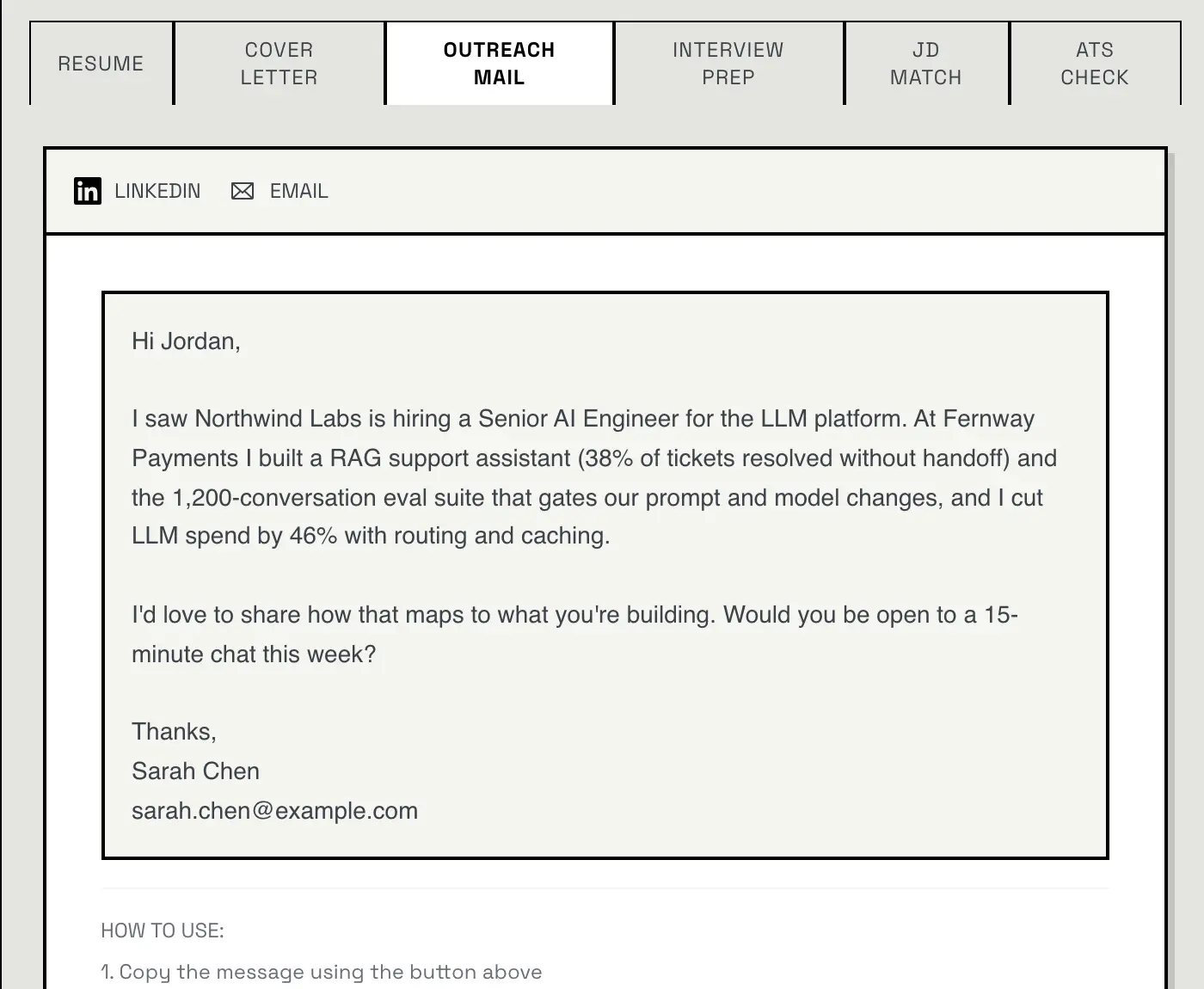
A 70–100 word cold email or LinkedIn message for the same job, written from your resume. Edit it, regenerate it and copy it to your clipboard. Its prompt, like the cover letter's, can be replaced with your own in Settings.
Open your master resume and click Enhance Resume. The AI looks for thin experience and project entries and asks you up to six questions about them. From your answers it writes two to four new bullet points per item, which you review before clicking Add to Resume. It only uses details you provide; it doesn't invent metrics.
In the builder, choose the experience entries, projects or skills to rework and write an instruction such as "use stronger action verbs" or "emphasise leadership". You get a before-and-after preview before anything is applied. The prompt forbids new facts, metrics, dates, companies, titles or accomplishments.
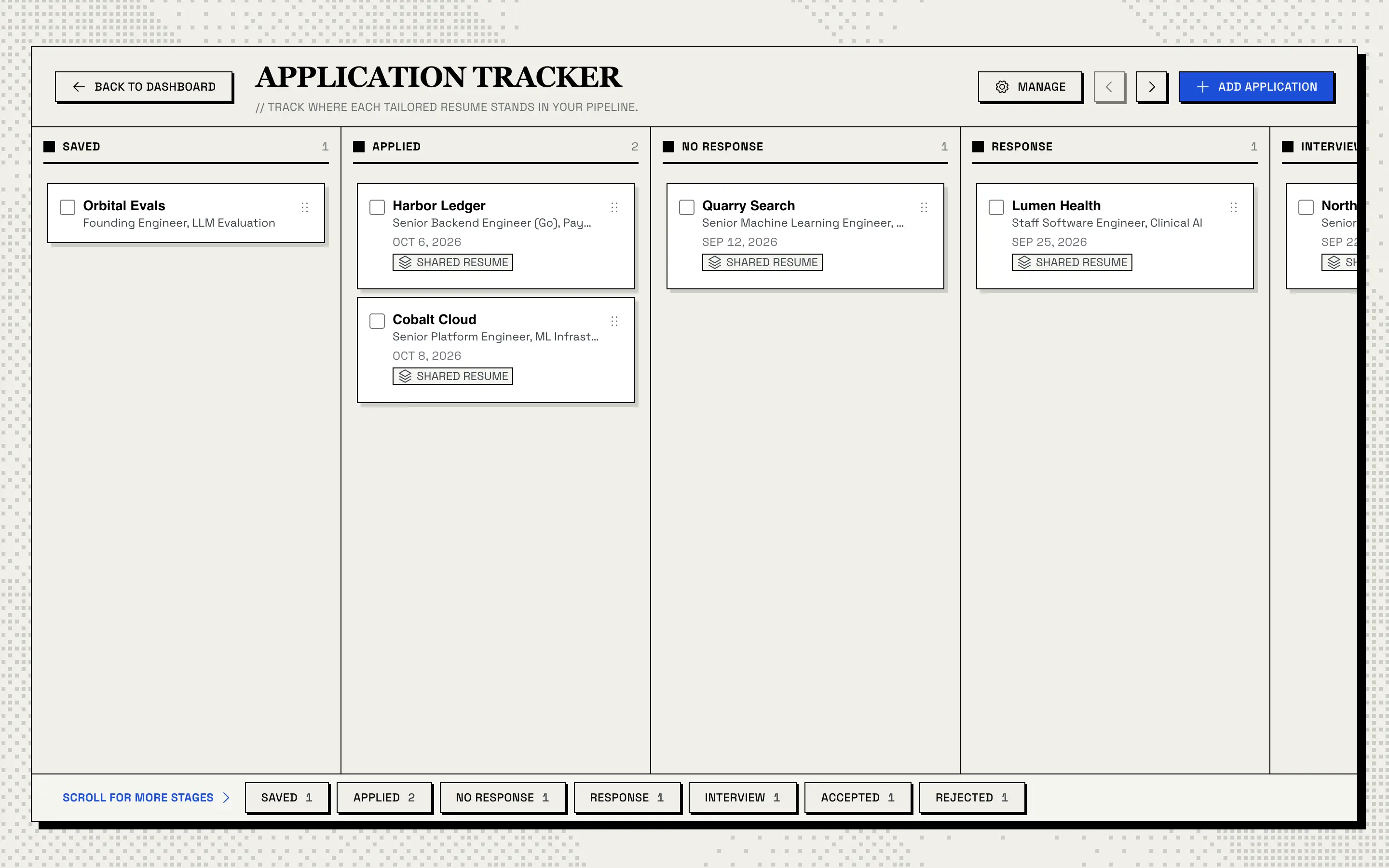
The tracker is a Kanban board for your job search. Every tailored resume you confirm gets a card automatically, and you can add cards by hand for jobs you haven't tailored for yet.
7
stages, from Saved to Accepted or Rejected
1
card for every tailored resume you confirm, added for you
0
job boards connected: the tracker is your own record
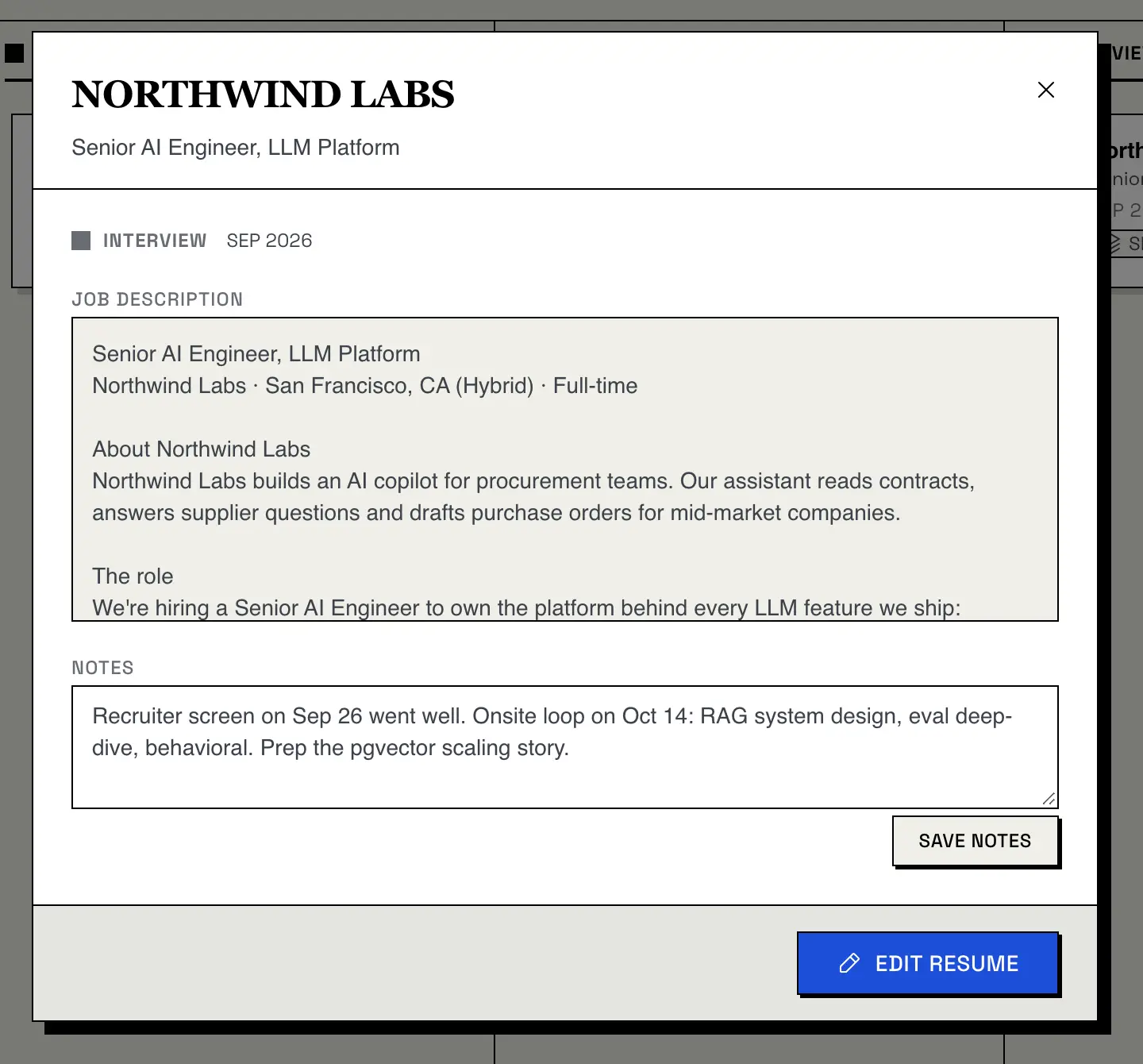
Click a card to read the full job description, keep notes, and open the exact resume you applied with: Edit Resume takes you to the builder. If that resume has since been deleted, the card still opens and tells you.
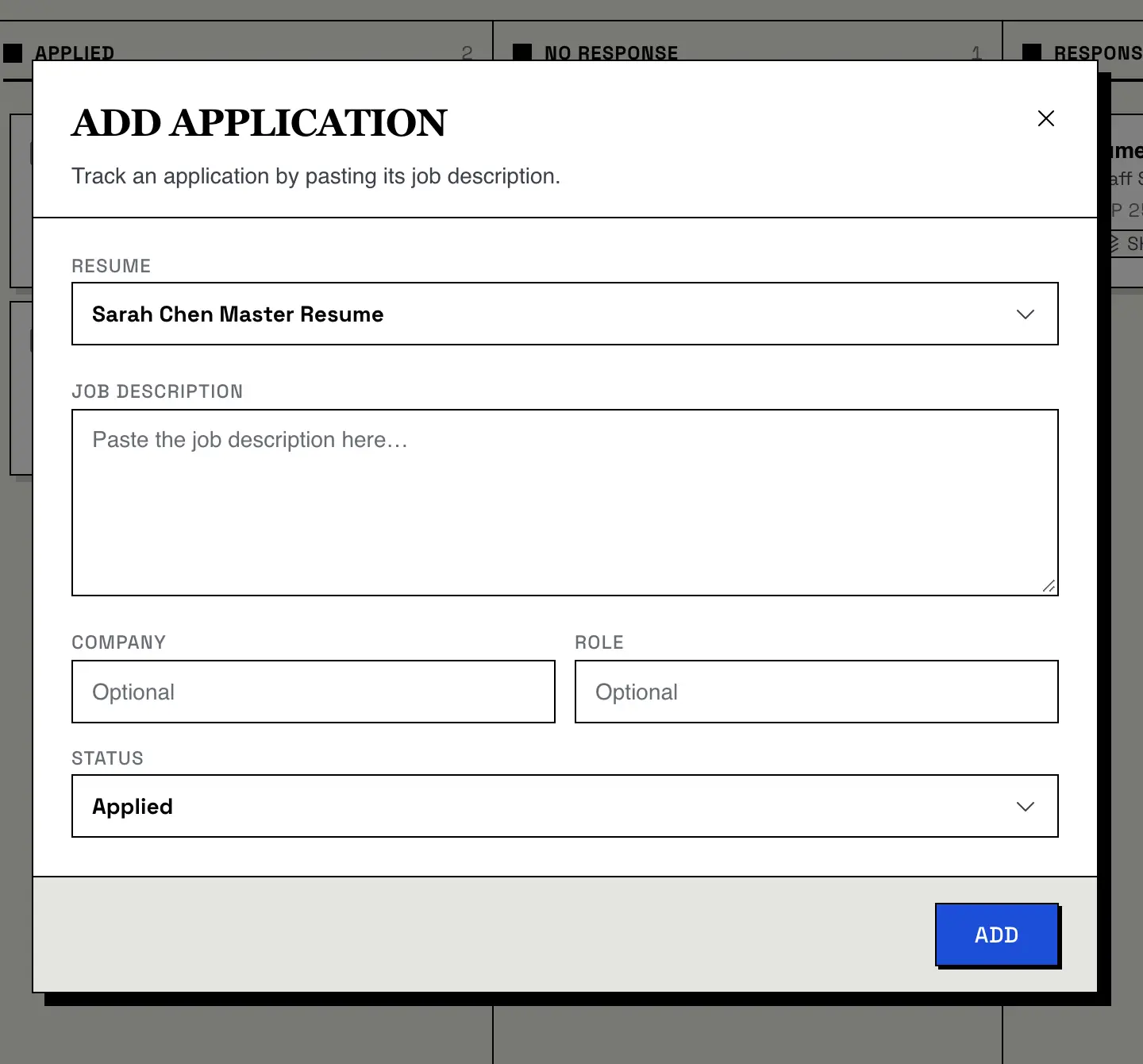
Click Add Application, choose a resume, paste the job description and pick a starting stage, such as Saved for a job you plan to tailor for later. Company and role are optional: leave them blank and the AI extracts them from the job description.
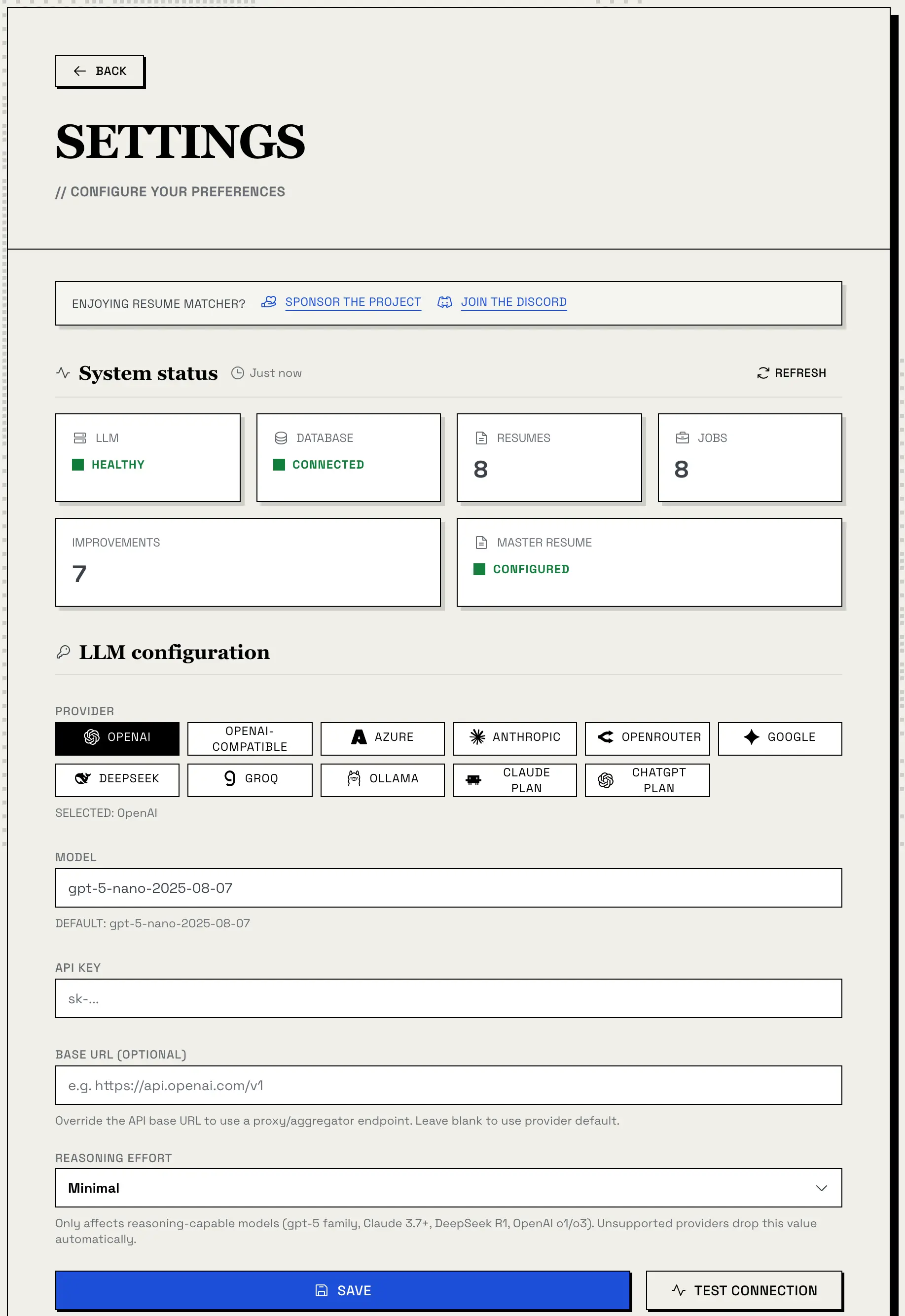
Resume Matcher doesn't include an AI model. You connect one, in the cloud or on your own machine, and the app handles the prompts, checks and formatting.
11
ways to connect a model: an API key, your own machine or a plan you pay for
7
languages, for the interface and for what the AI writes
0
analytics or tracking code in the app
| Provider | Default model | Runs |
|---|---|---|
| OpenAI | gpt-5-nano-2025-08-07 | Cloud |
| Anthropic (Claude) | claude-haiku-4-5-20251001 | Cloud |
| Google Gemini | gemini-3-flash-preview | Cloud |
| DeepSeek | deepseek-chat | Cloud |
| OpenRouter | deepseek/deepseek-chat | Cloud |
| Groq | llama-3.3-70b-versatile | Cloud |
| Azure AI Foundry | mistral-large-latest | Cloud |
| Ollama | gemma3:4b | Your machine |
| OpenAI-compatible server (llama.cpp, vLLM, LM Studio) | You type it | Your machine |
| ChatGPT plan (Sign in with ChatGPT) | Your account's models | Cloud |
| Claude plan (via Claude Code) | Claude Code's default | Cloud |
You can type any model name your provider offers. There's no official minimum model, but small models can struggle with the structured edit format the tailoring step uses.
Set it up in Settings (provider, model, API key and, for a proxy or local server, a base URL; Save, then Test Connection), or with environment variables in apps/backend/.env or your Docker environment: LLM_PROVIDER, LLM_MODEL, LLM_API_KEY and, if needed, LLM_API_BASE. Provider names are lowercase (anthropic, ollama). Settings saved in the app take precedence over environment variables.
{job_description}, {resume_data} and {output_language} placeholders.API keys entered in Settings are stored encrypted. Each provider keeps its own key, so switching providers doesn't erase the other one. The ChatGPT and Claude plans need no key; they're community-built, with caveats worth reading first.
Resume Matcher also ships an MCP server, so Claude Code, Claude Desktop, Cursor or Codex can work with your resumes directly. Your client's model writes the content; Resume Matcher stores, checks, scores and renders it, in the app's own database, with no AI key of its own. It needs a local install, not Docker.
English, Spanish, Chinese (Simplified), Japanese, Brazilian Portuguese, French and Korean. The UI language changes the interface; the content language is the one the AI writes in, for tailored resumes, cover letters, outreach messages and interview prep. They're set separately, so you can use the interface in English and write a resume in Japanese. PDFs include Noto Sans fonts for Chinese, Japanese and Korean text.
Resumes and cover letters export as PDF. The app opens a headless Chromium on a print-only version of your resume and prints it, so the PDF contains real text that can be selected, copied and read by software. Headings are real headings, two-column layouts keep the main content first in the reading order, and the page matches the builder: template, fonts, spacing and page size.
Export needs the frontend running. Locally, install Playwright's Chromium (uv run playwright install chromium) or have Chrome or Edge installed; the Docker image includes everything.
Everything lives in one folder, apps/backend/data/, or the Docker volume: resume_matcher.db, an SQLite database with your resumes, job descriptions, tailored versions and tracker board (PostgreSQL instead, if you set DATABASE_URL); config.json for non-secret settings; and your API keys, encrypted at rest with a secret key file readable only by your user account.
Only the AI requests you trigger leave your machine, sent to the provider you chose. With a cloud provider, that includes your resume, contact details and all, and the job description. The app contains no analytics or tracking code. At startup, the AI library (LiteLLM) fetches a public model price list; that request carries none of your data. Use Ollama or another local model server, and your resume, the job descriptions and every AI output stay on your computer.
Docker is fastest. Resume Matcher ships as a single container image on Docker Hub, where it's a Docker-Sponsored Open Source image, and on GitHub Container Registry, both built for linux/amd64 and linux/arm64. Then open http://localhost:3000/settings to connect a model.
To build it from the repository instead, clone it and start it with Docker Compose: git clone, then docker compose up -d.
The resume-data volume holds your database and settings, so your data survives container upgrades. Pin a version (for example :1.3.0) for repeatable deployments. To run it from source instead, you need Python 3.13+, Node.js 22+, npm and uv.

$ git clone https://github.com/srbhr/Resume-Matcher.git$ cd Resume-Matcher$ docker compose up -d$ docker run --name resume-matcher -p 3000:3000 \ -v resume-data:/app/backend/data \ srbhr/resume-matcher:latest# then open http://localhost:3000/settings
It isn't a hosted website. You run it yourself, locally or in Docker. It's built for one user.
It doesn't apply for jobs or connect to job boards or employers' systems. The tracker is your own record.
It doesn't predict how an ATS ranks you. The ATS Check tests whether text reads back out of its own PDF, and the scores are keyword and section heuristics. None of them simulates an employer's software.
It doesn't write a resume from nothing. It works from your uploaded resume or your answers in the wizard.
It doesn't read scanned PDFs. Files need a text layer.
It exports PDF only. Word files are accepted as input, not output.

Backend, frontend, SRE or ML: paste the job you want next and send a resume that speaks its stack. Free, open source, and it runs on your machine.